
Restaurant QR code generator for your menu
Create a QR code that opens a fast, mobile-friendly menu — in your colors. Print it once and keep updating the menu behind it.
Create restaurant QR codeYour colors, matched to your menu
Print-ready PNG and SVG downloads
Update the menu, keep the code
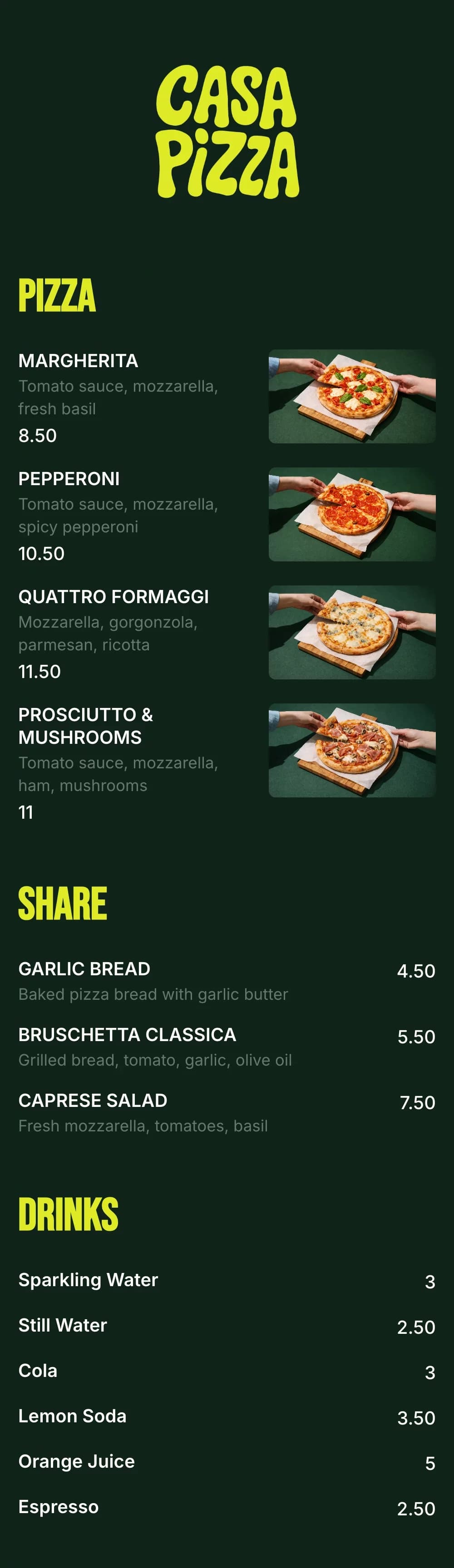
Not every restaurant QR code is a good one
Most frustration with QR menus comes from what the code opens, not the code itself.
QR code to a PDF menu
- Tiny text guests have to pinch and zoom
- Slow to load on mobile data
- Every price change means a new file — and often a new code
- Looks the same as every other PDF
QR code to an mmmmenu menu
- Built for phones, readable without zooming
- Opens instantly in any browser
- Edit dishes and prices — the code never changes
- Your logo, colors and fonts
What size should a restaurant QR code be?
A simple rule: make the code at least one tenth of the distance it’s scanned from.
| Where it goes | Scanned from | Minimum size |
|---|---|---|
Receipts and flyersScanned from 20 cm | 20 cm | 2 cm |
Table tents and stickersScanned from 30–40 cm | 30–40 cm | 3–4 cm |
Counter and menu boardScanned from 1 m | 1 m | 10 cm |
Front window and doorScanned from 1.5 m | 1.5 m | 15 cm |
Posters and A-frame signsScanned from 2 m+ | 2 m+ | 20 cm+ |
Restaurant QR code print checklist
Six quick checks so every guest can scan your code on the first try.
- 01
Dark code on a light background
Scanners read dark modules on light backgrounds best. Keep strong contrast, even with brand colors.
- 02
Leave a quiet zone
Keep a clear border around the code — don’t let text, frames or table edges touch it.
- 03
Add a call to action
A short “Scan for menu” next to the code tells guests exactly what they’ll get.
- 04
Test on iPhone and Android
Scan the printed proof with a couple of phones, in the actual lighting of your room.
- 05
Pick a flat, matte surface
Glossy laminate and curved cups cause glare and distortion. Matte stickers and flat cards scan fastest.
- 06
Use SVG for large prints
SVG stays sharp at any size, so window decals and posters never look pixelated.
Get your restaurant QR code in minutes
- 1Add your menu
- 2Pick your QR colors
- 3Download and print
Already have a menu online? Use the free menu QR code generator
Your questions, answered
- How do I create a QR code for my restaurant menu?
- Add your dishes and prices in the menu editor, choose your design, and publish. Your menu gets its own QR code, which you can recolor and download as PNG or SVG.
- Can I change my menu without printing a new QR code?
- Yes. The QR code points to your menu, not to a file, so price changes, new dishes and sold-out items show up instantly while the printed code stays the same.
- Do restaurant QR codes expire?
- The code itself never expires. It keeps opening your menu for as long as the menu is published.
- What size should I print my restaurant QR code?
- Make it at least one tenth of the scanning distance: about 3–4 cm on tables, 10 cm on a counter and 15 cm or more in a window.
- Can I make a QR code for a menu I already have online?
- Yes. Paste its link into the free menu QR code generator, pick your colors and download a PNG or SVG — no sign-up needed.
- Should I download PNG or SVG?
- PNG (1000×1000) works for table cards, flyers and social posts. SVG is best for professional printing and large signs because it stays sharp at any size.
- What’s the difference between a restaurant QR code and a QR code menu?
- The QR code is what guests scan; the QR code menu is the mobile menu it opens. mmmmenu gives you both — see also how guests scan a menu.