Bubble tea menu template
Create a digital Bubble tea menu online that’s easy to customize and update. Customize the design, add items and prices, and generate a QR code menu you can share with a link or anywhere your customers are.
Easy to customize
Share via Link, QR, Website, Social Media
Publish updates in seconds
Custom branding
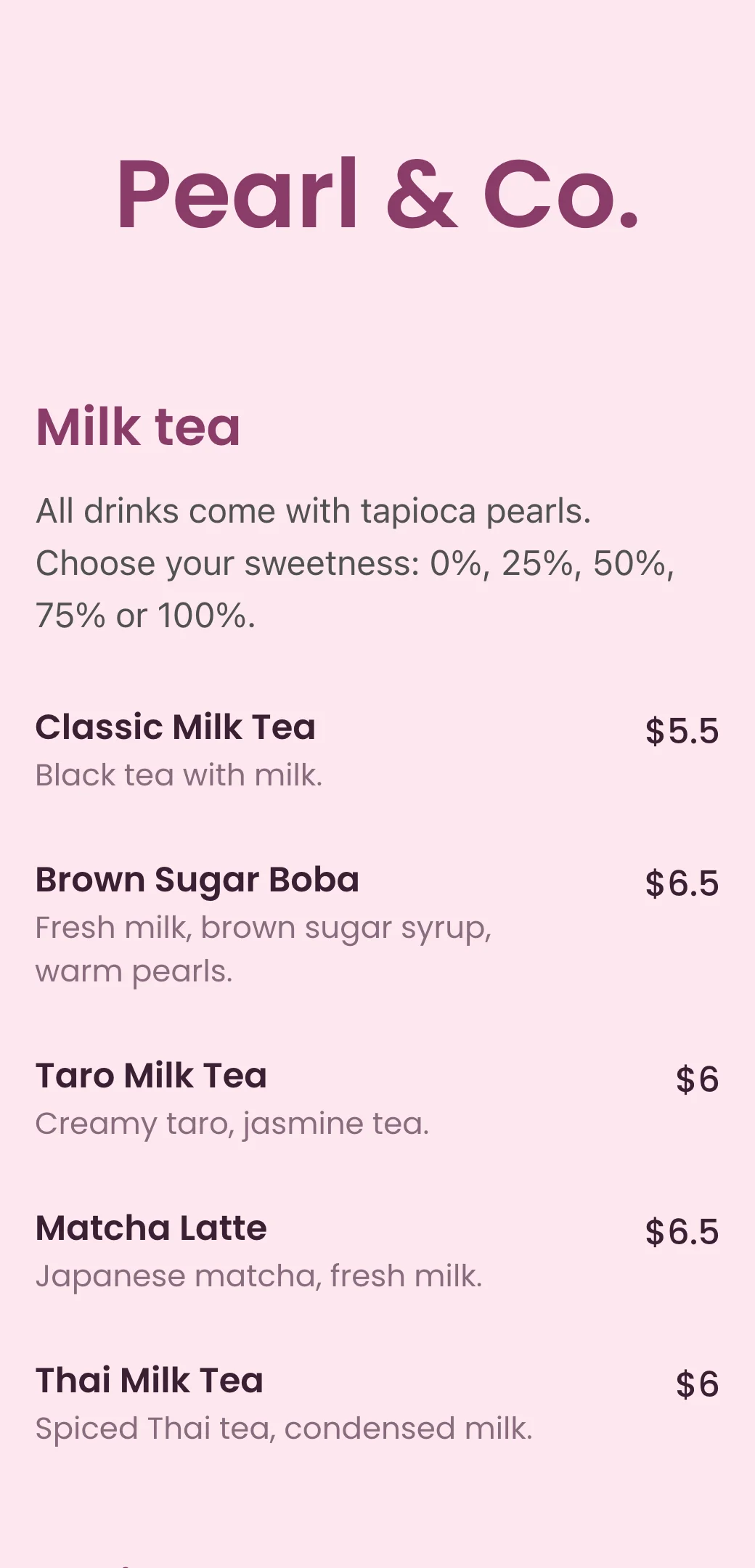
How to create Bubble tea QR code menu
Add your Bubble tea dishes, customize menu design, and instantly share restaurant menu with a link or QR code.
Add your menu items
Enter your dishes, descriptions, prices using a simple menu editor.

Customize your design
Choose colors, fonts, and layout to match your restaurant’s brand.
Generate QR code & Publish
Get a unique scan for menu QR code that opens your menu instantly on any phone.
Bubble tea menu creator made for digital menus
Say goodbye to printed menus. Build, update, and share your digital menu instantly—always accurate, always on brand.
Bubble tea menu maker
Choose colors, fonts, and layout to match your restaurant’s brand.
QR code menu generator
Each Bubble tea menu gets a unique QR code customers can scan at the table.
Custom branding
Match your menu to your restaurant brand with colors, fonts, and layout.
Instant updates
Change prices, items, or availability in seconds—no reprints.
Mobile-friendly menu
Designed to be easy to read on any phone, with clean layout and fast loading.
Shareable menu link
Use your Bubble tea menu link on Google, Instagram, website, or delivery platforms.
QR code Bubble tea menu vs printable PDF menu
Compare digital menus for restaurants with printable PDF menus and see which menu maker is better for online restaurant menu design.

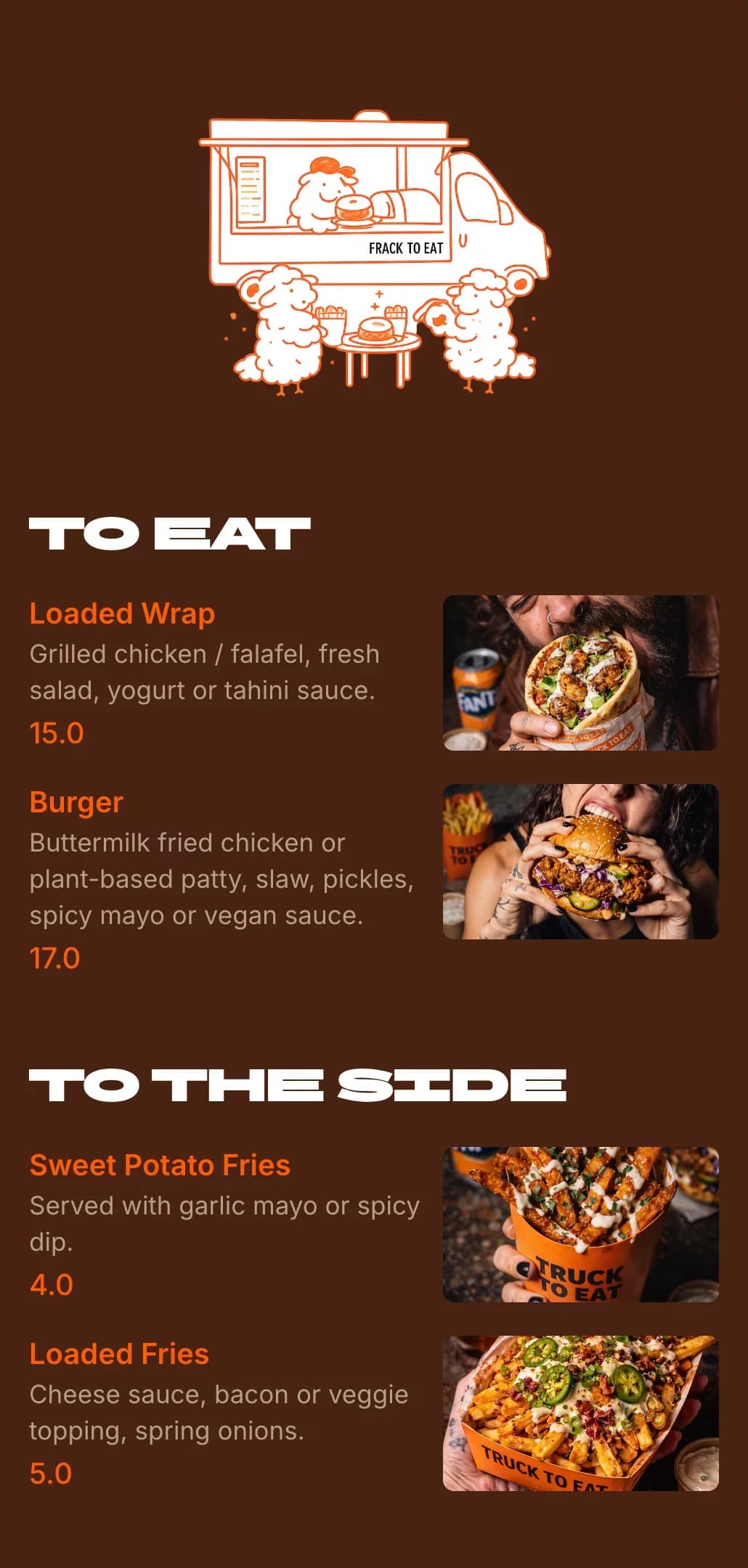
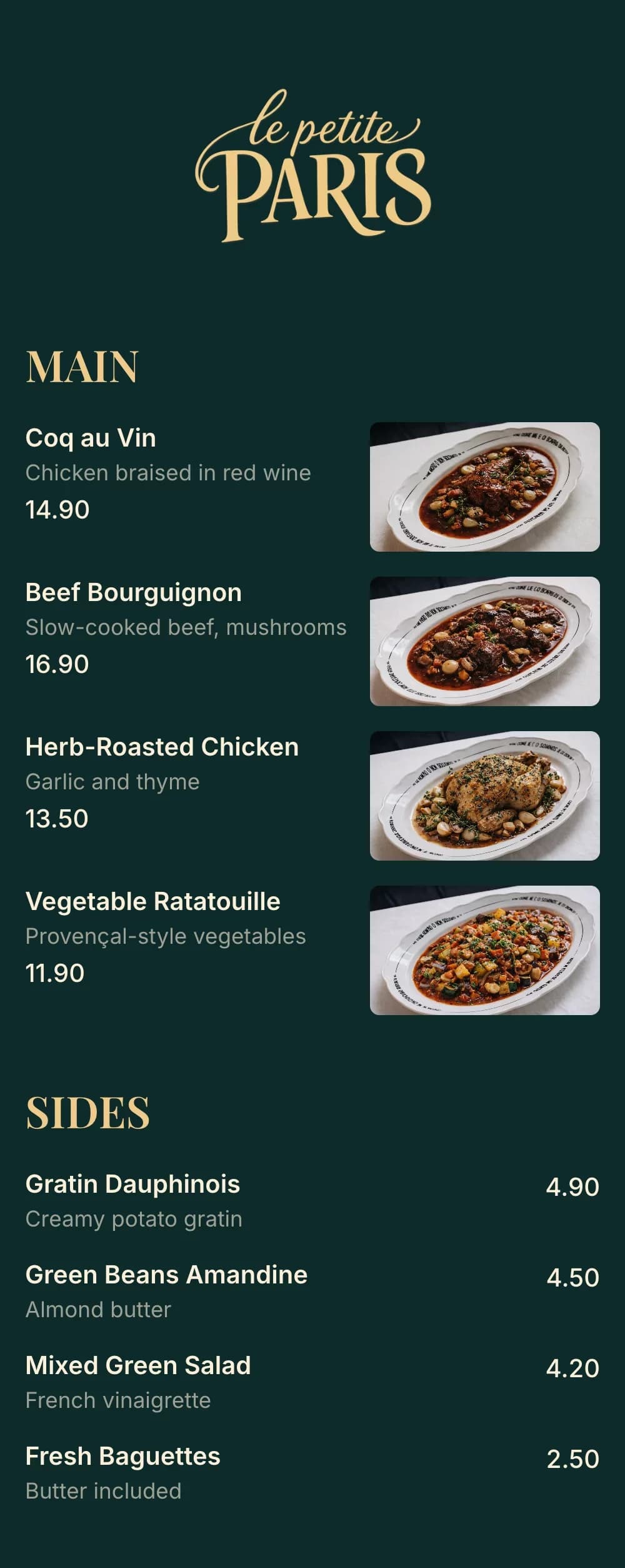
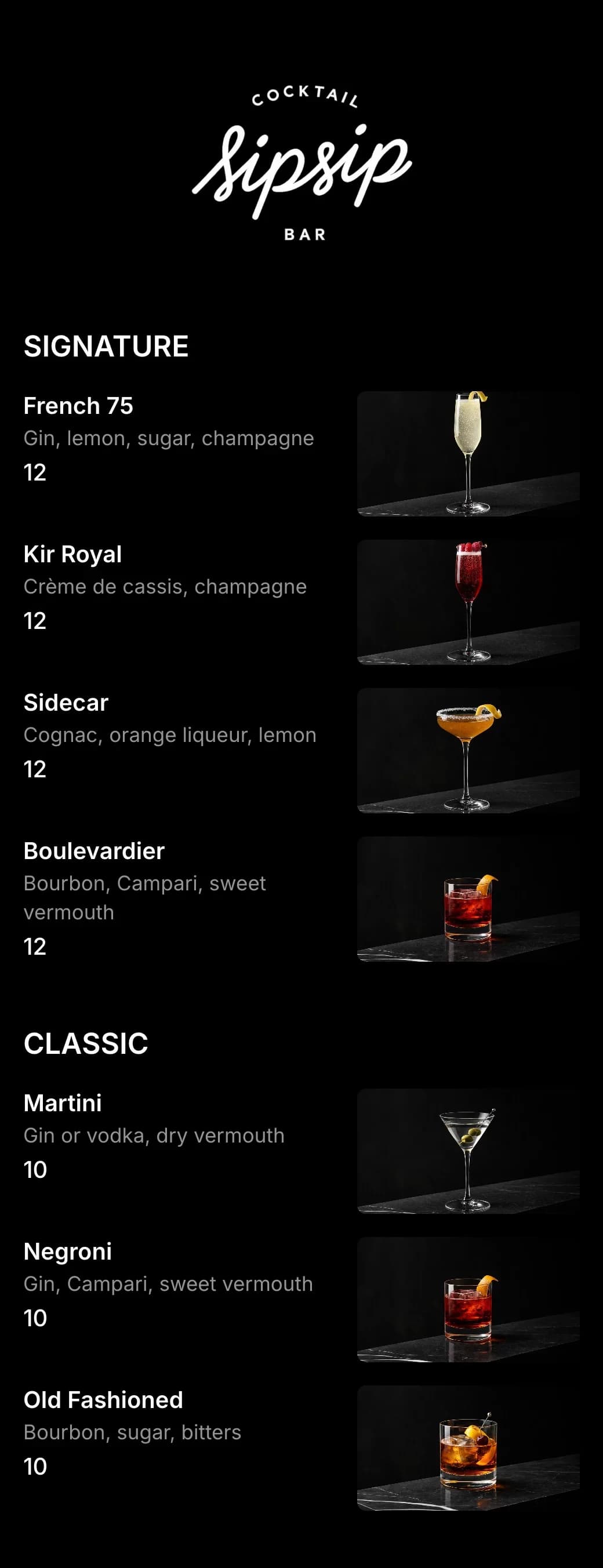
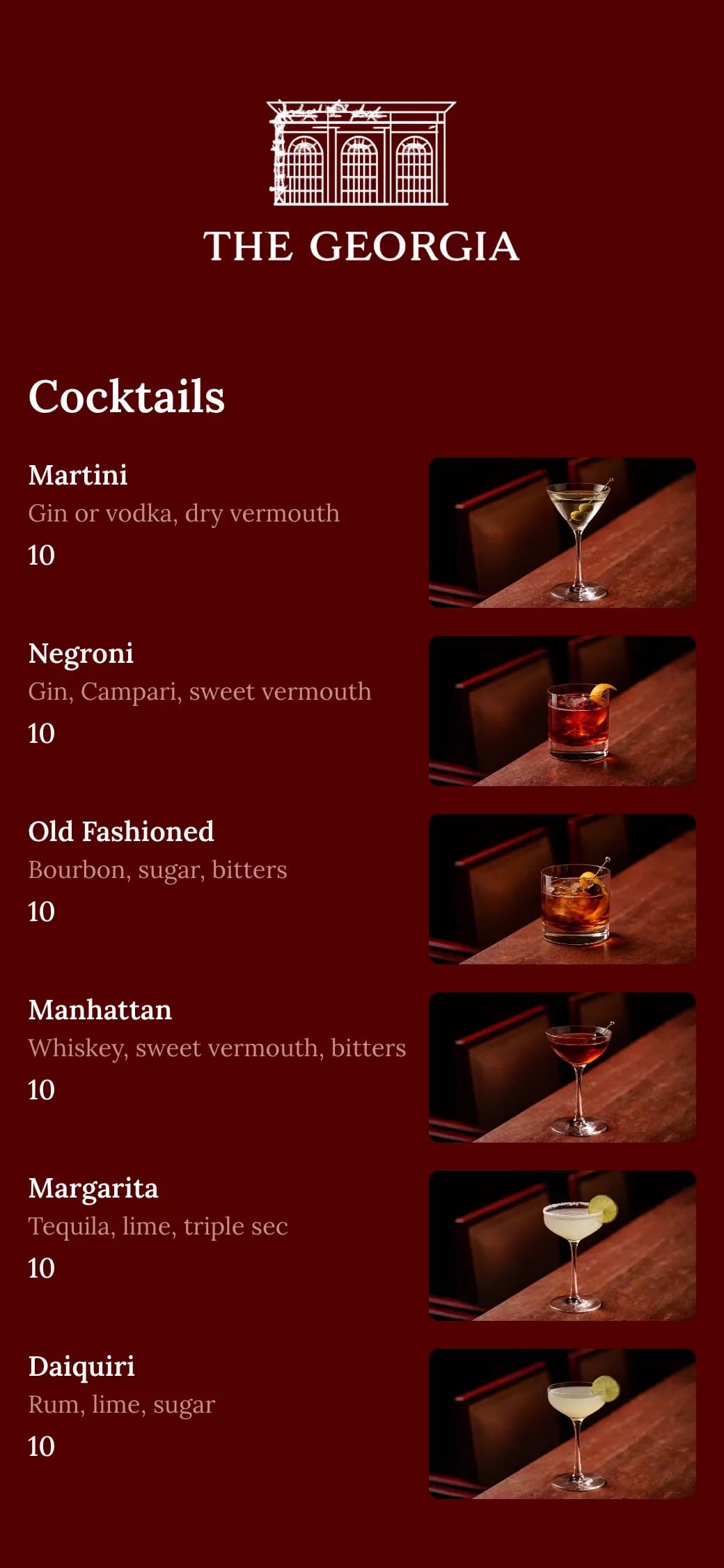
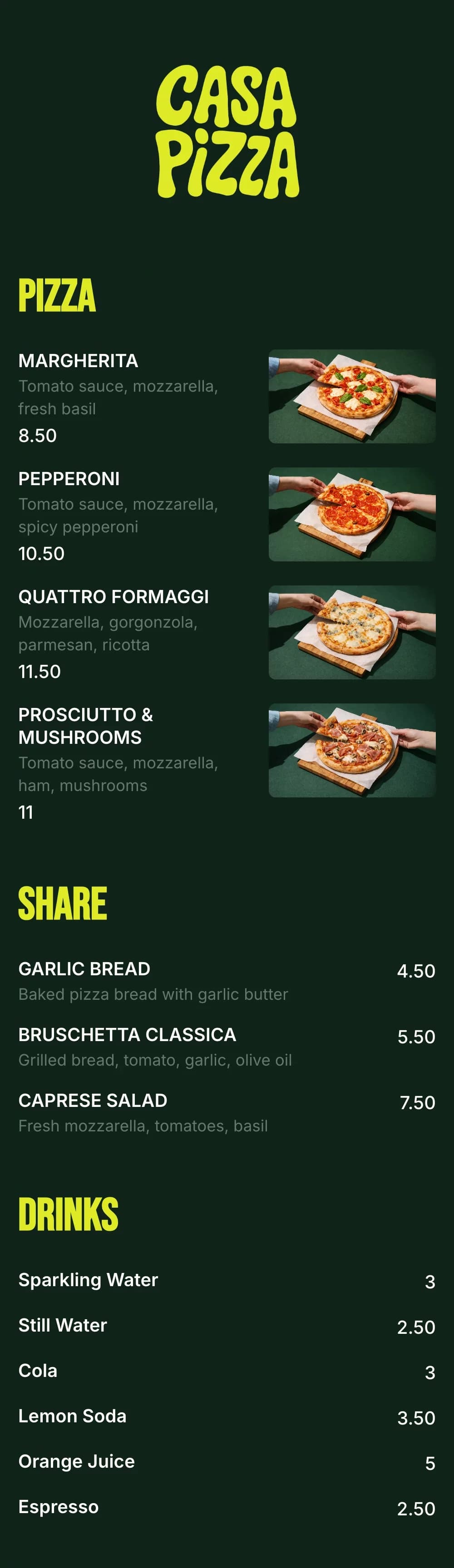
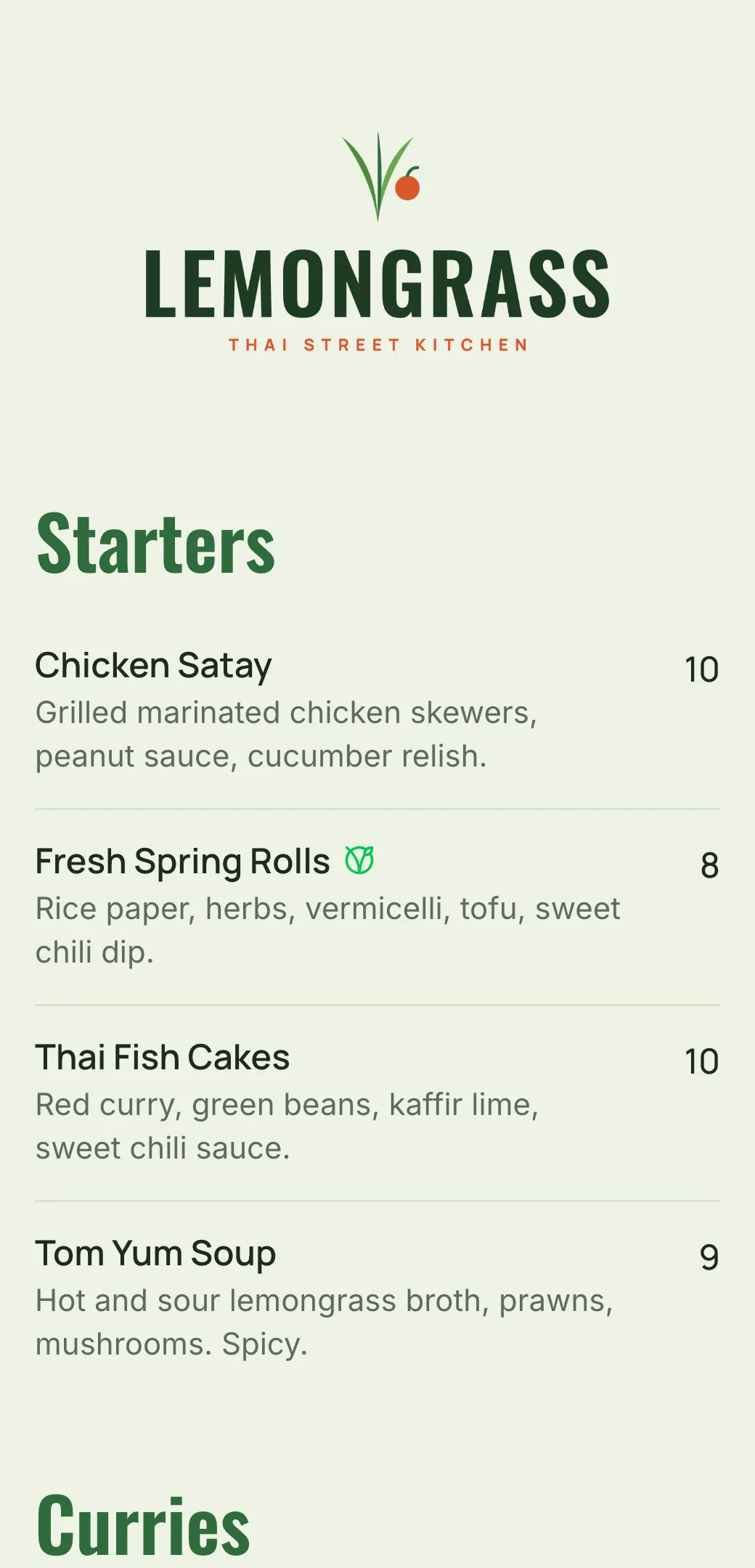
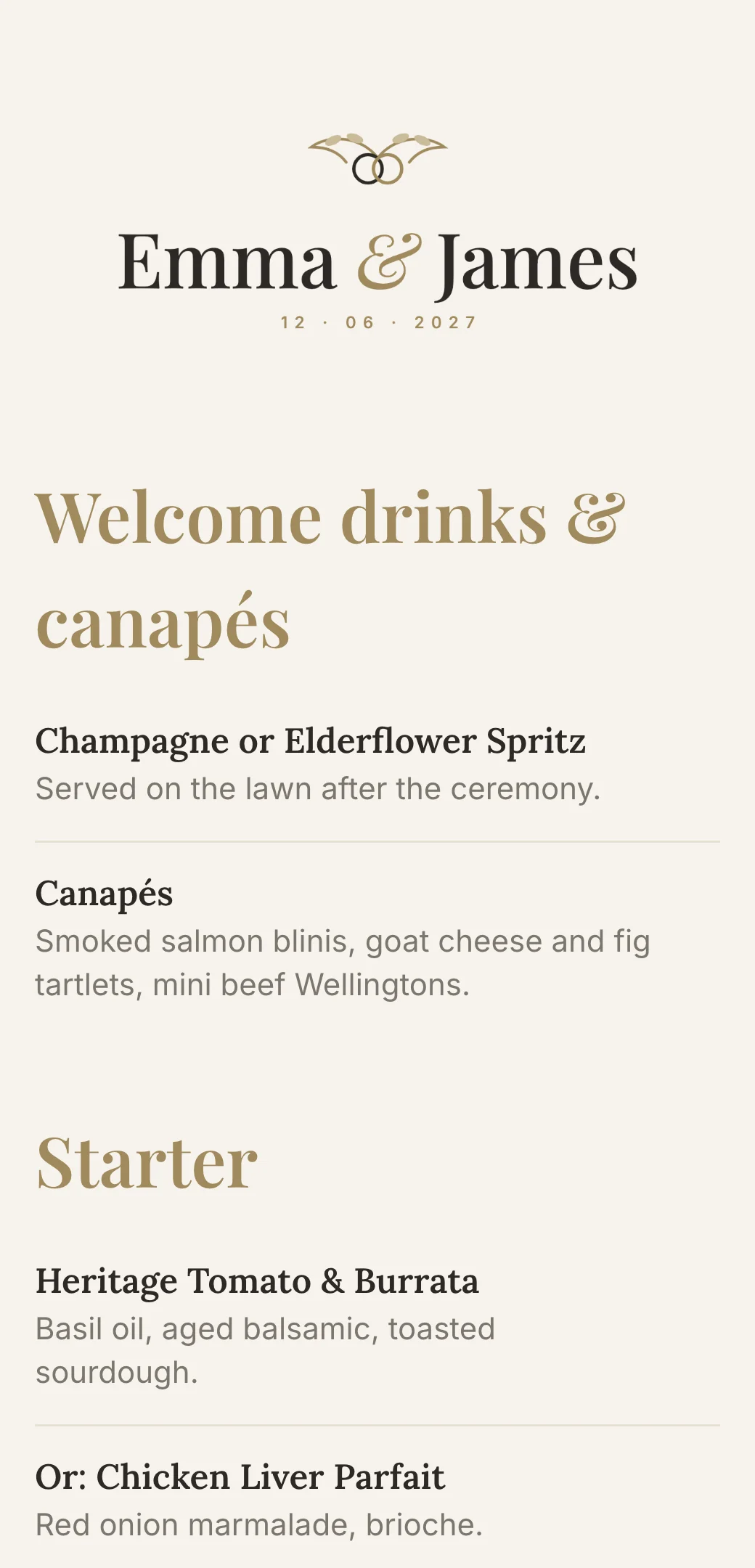
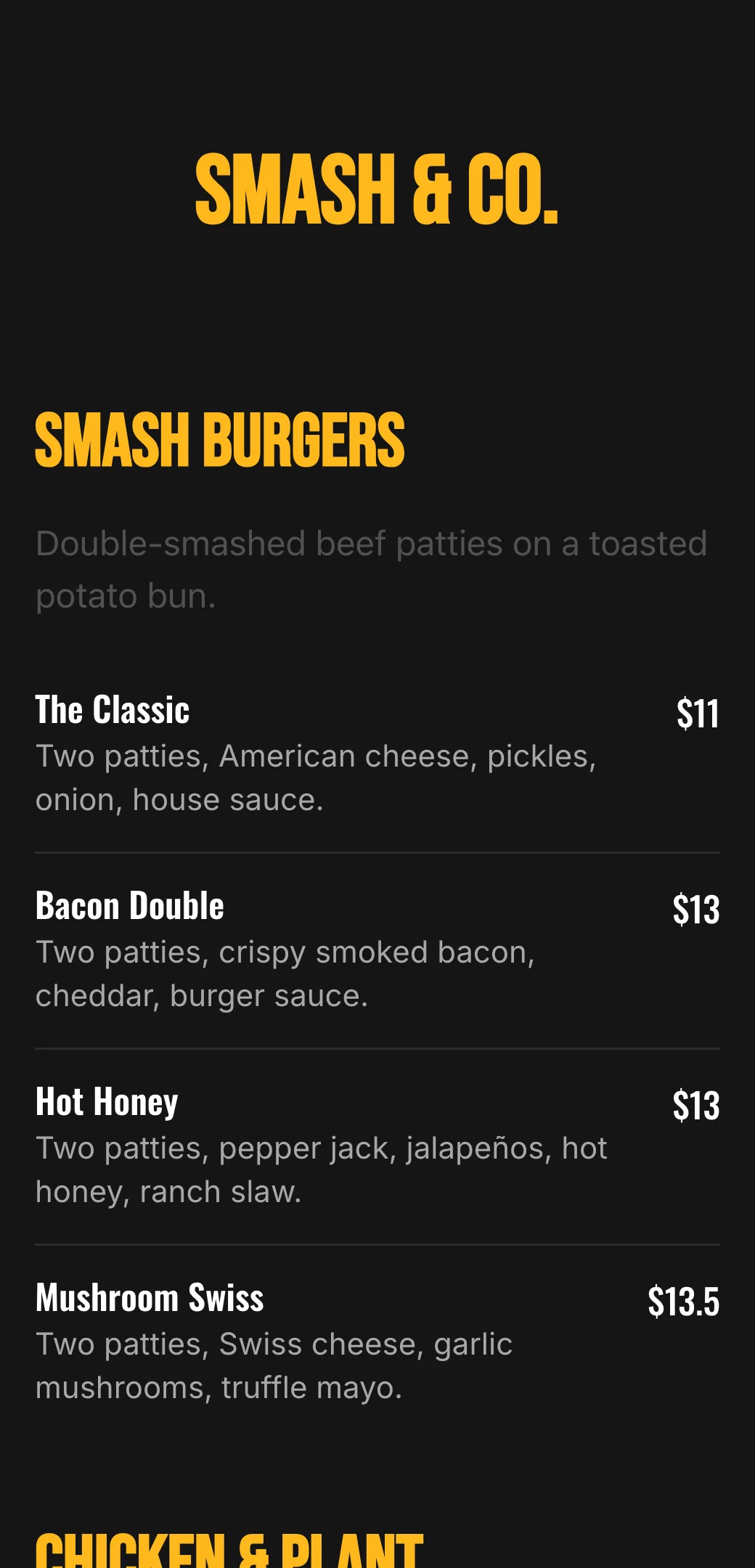
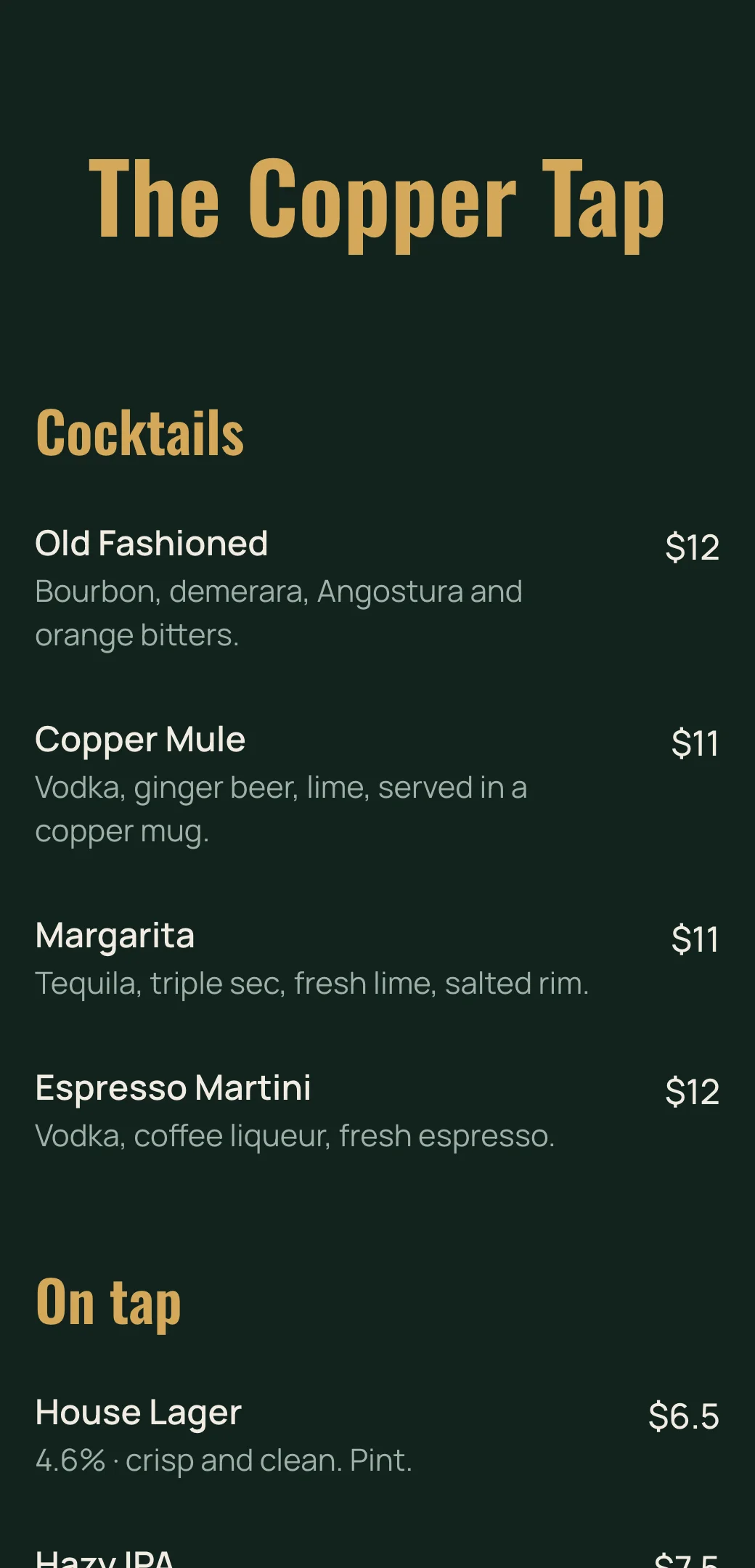
Restaurant menu templates for every business
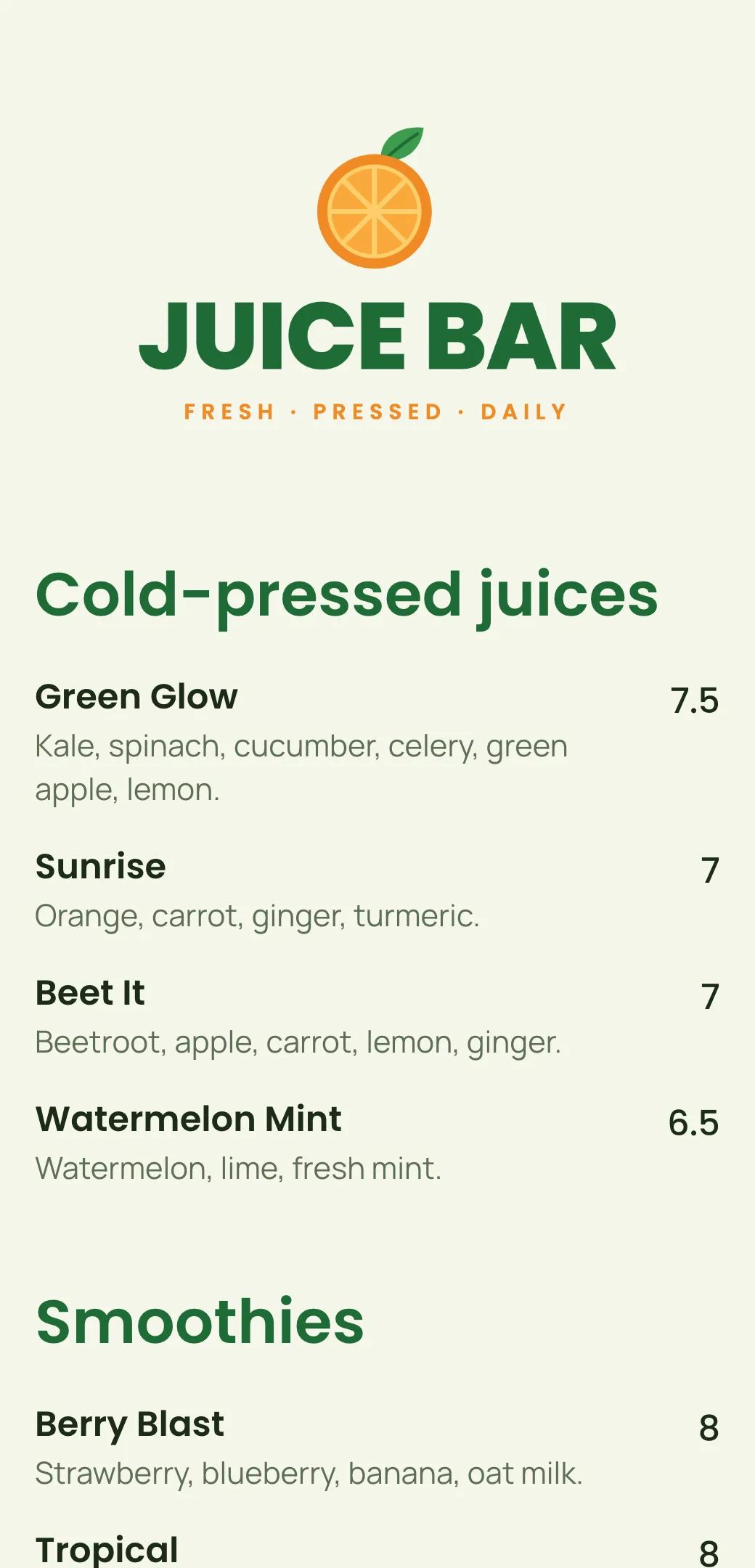
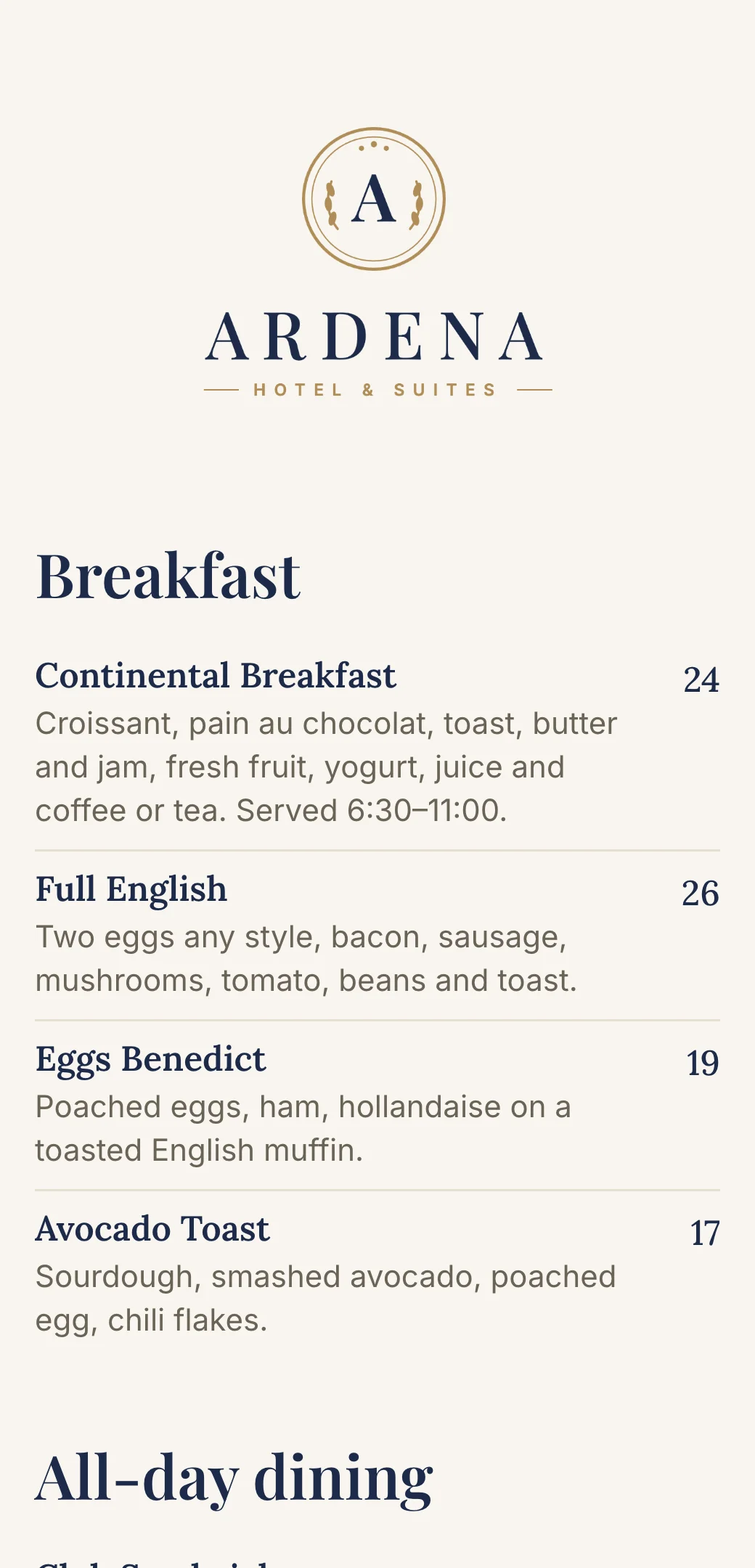
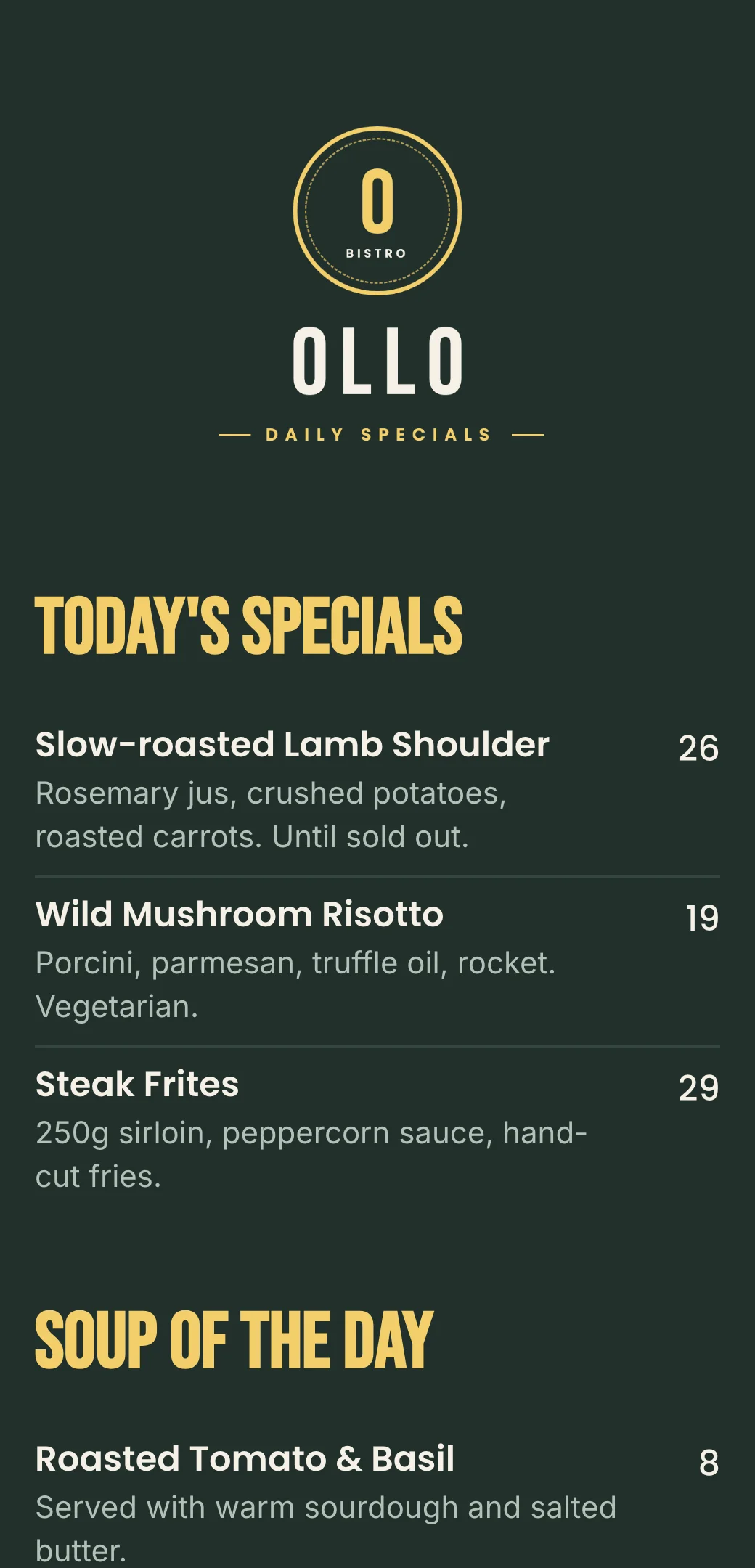
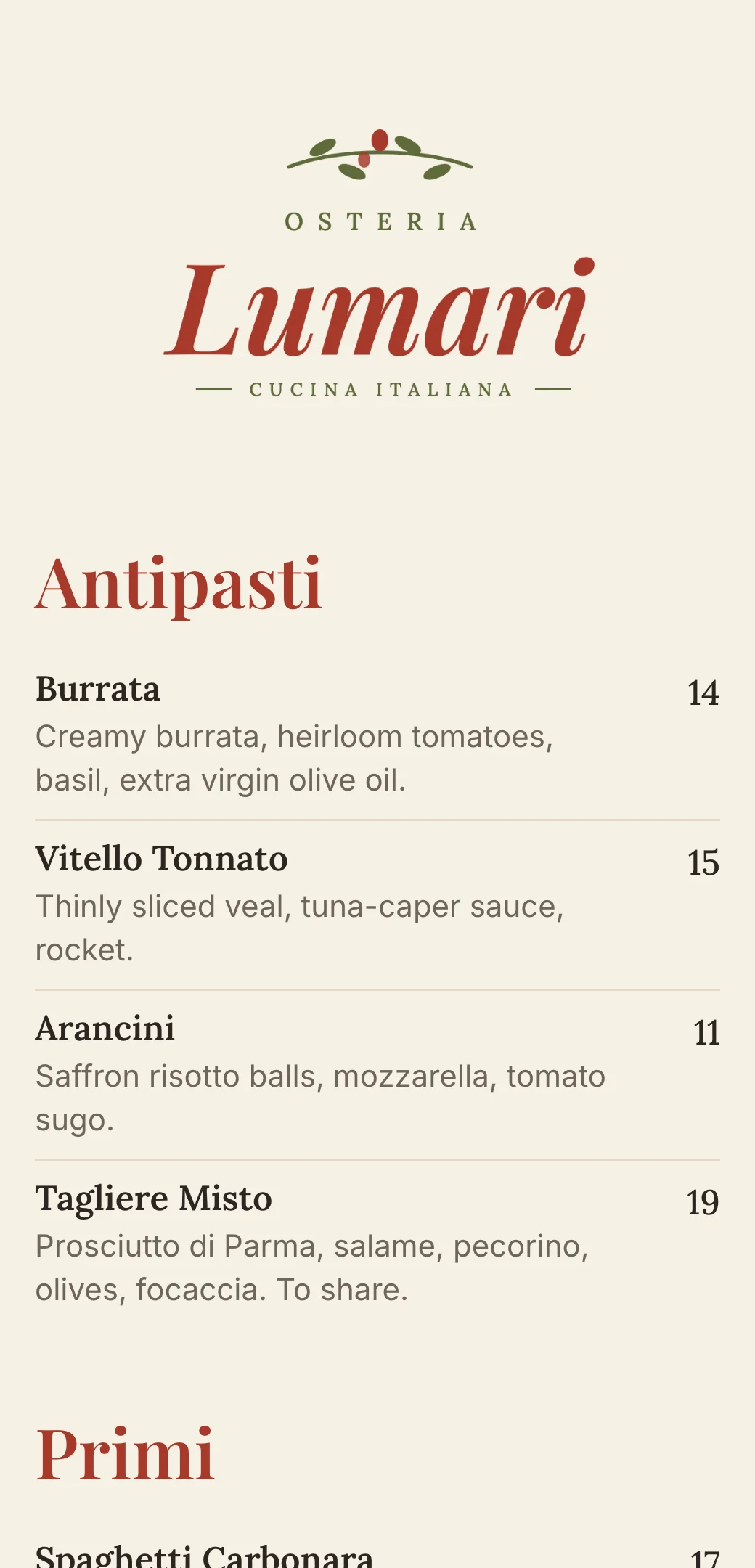
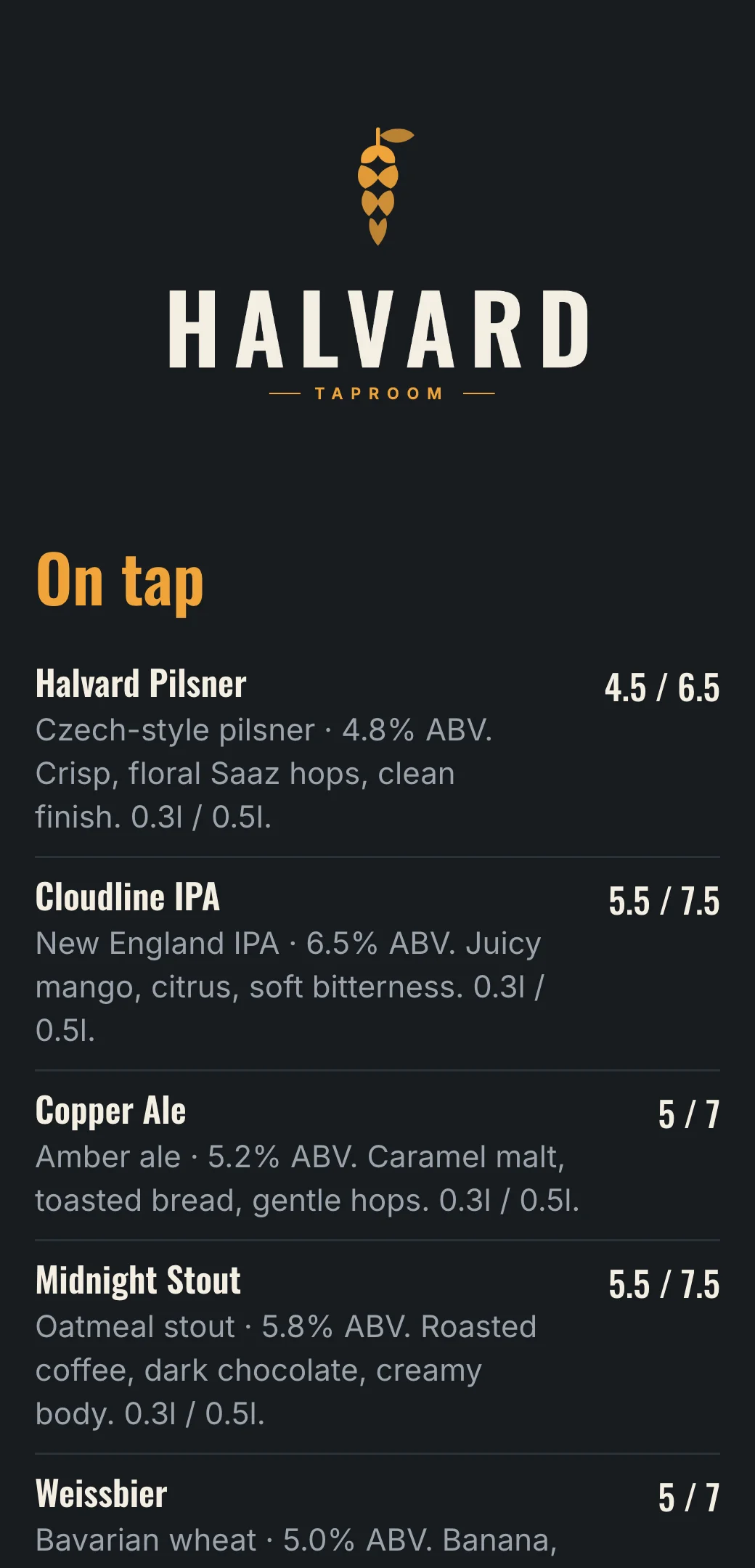
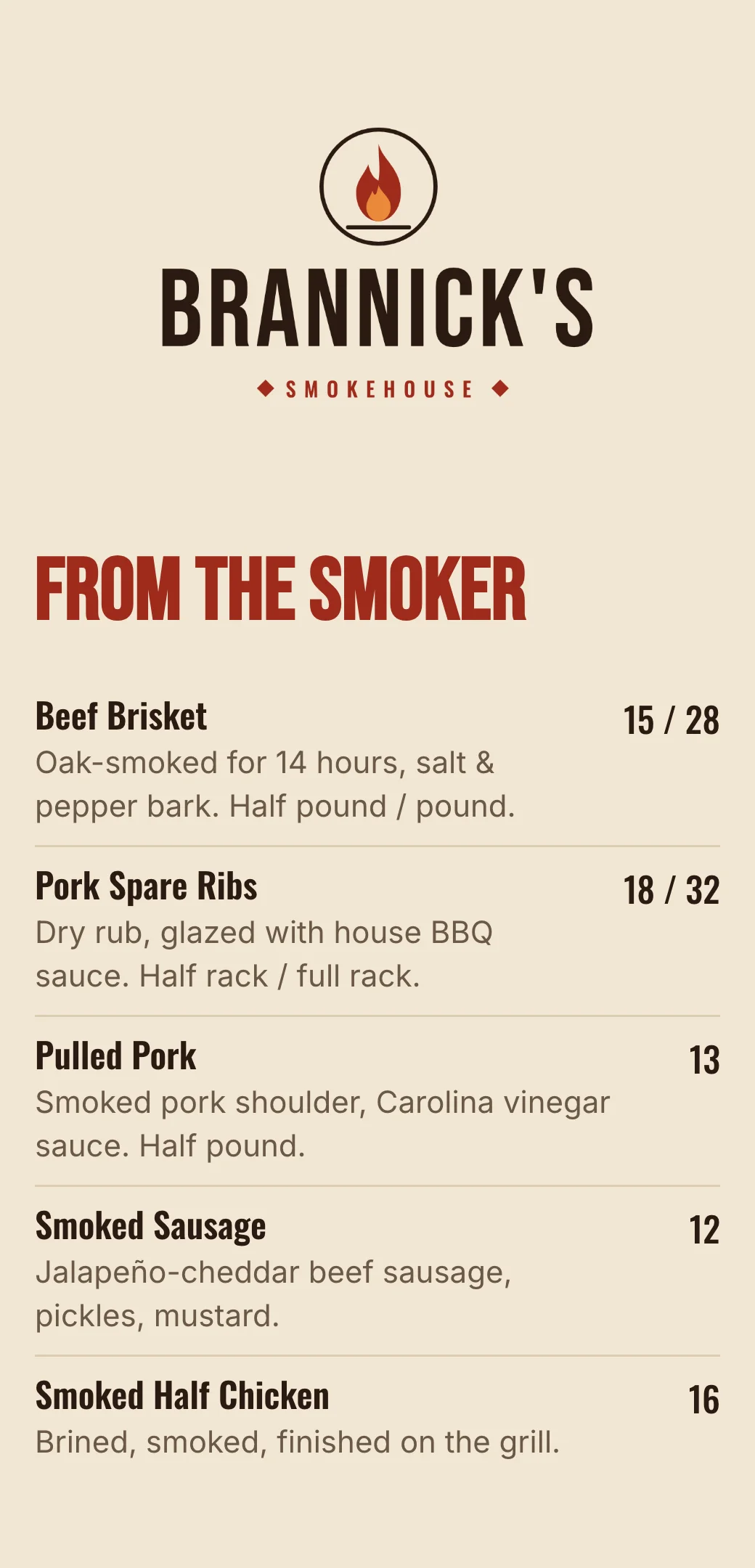
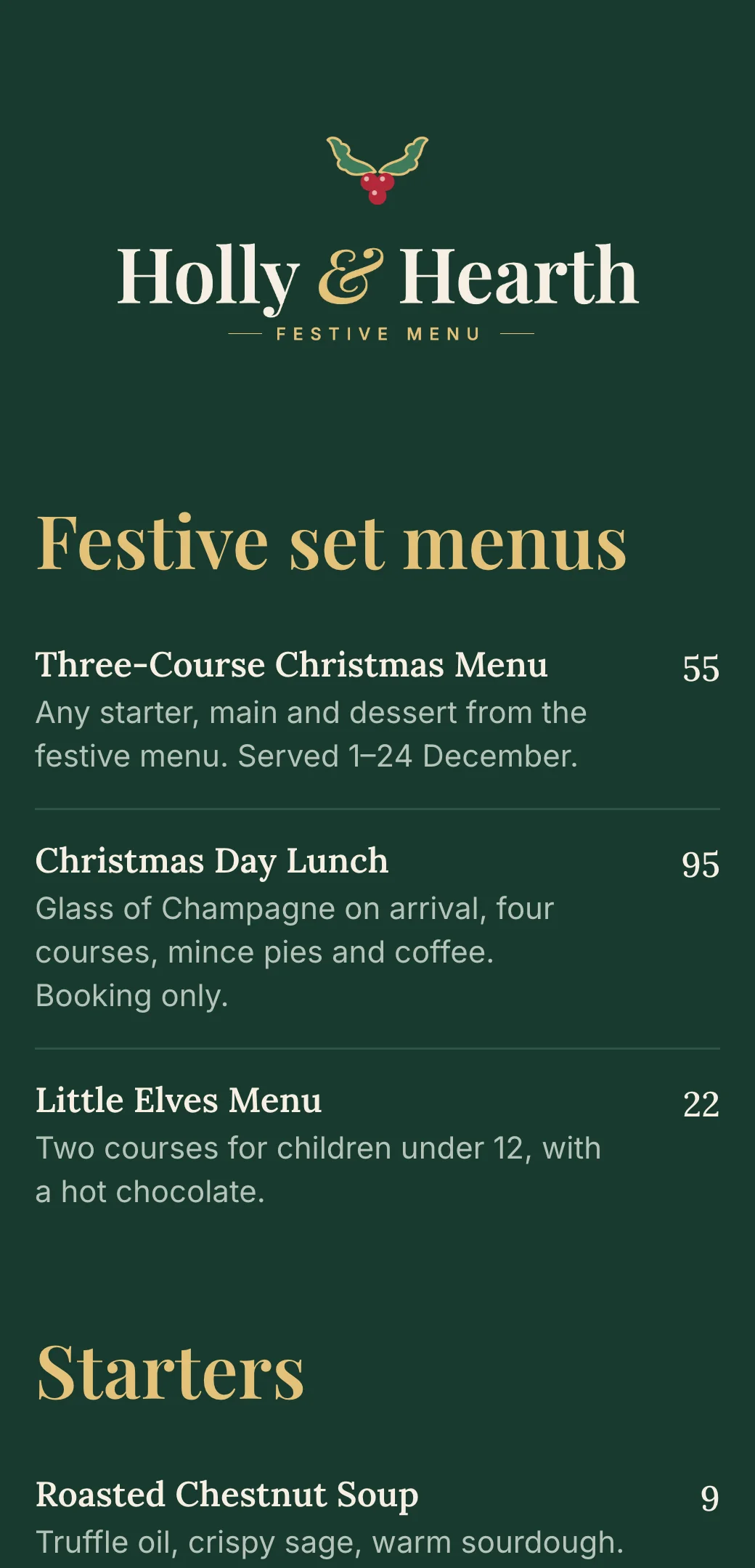
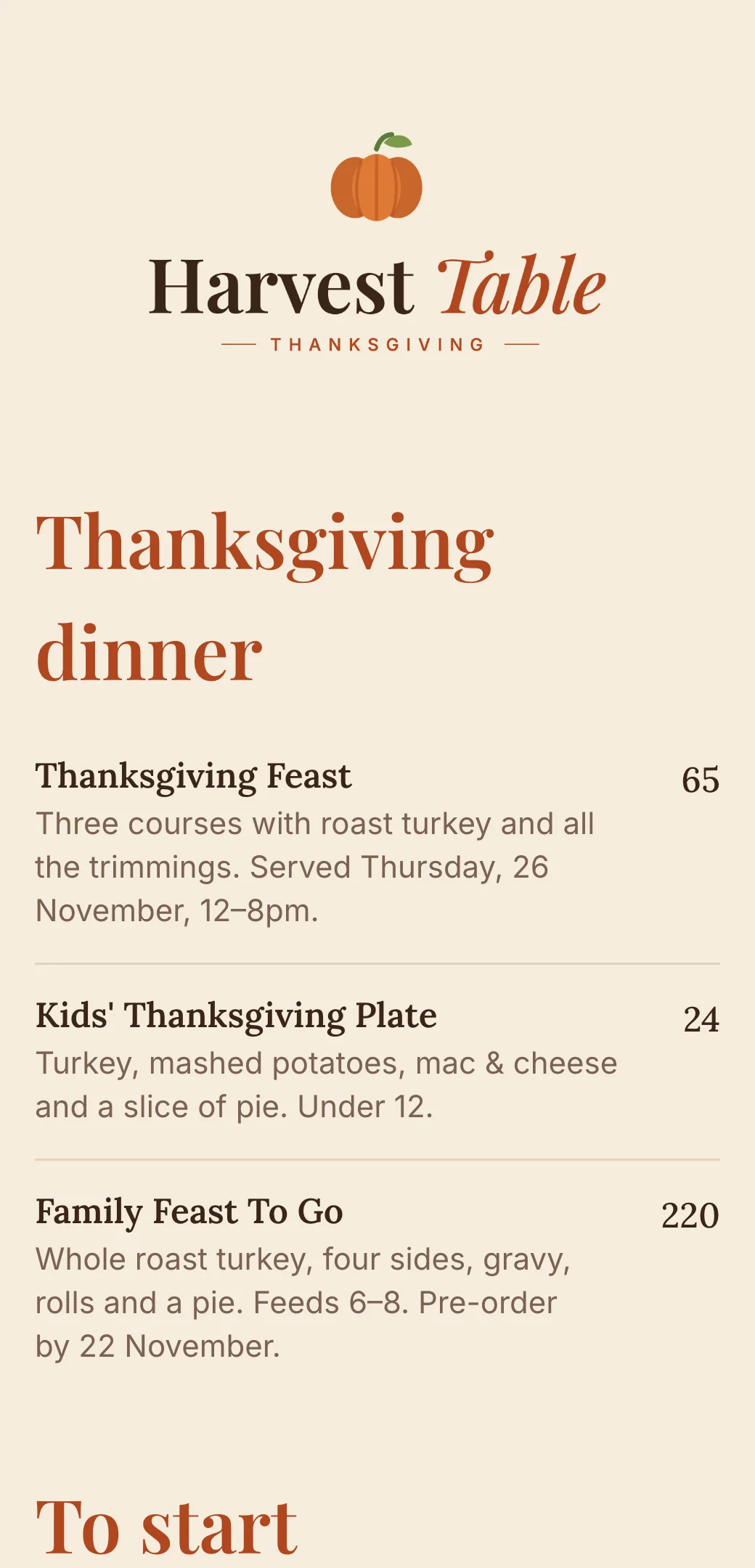
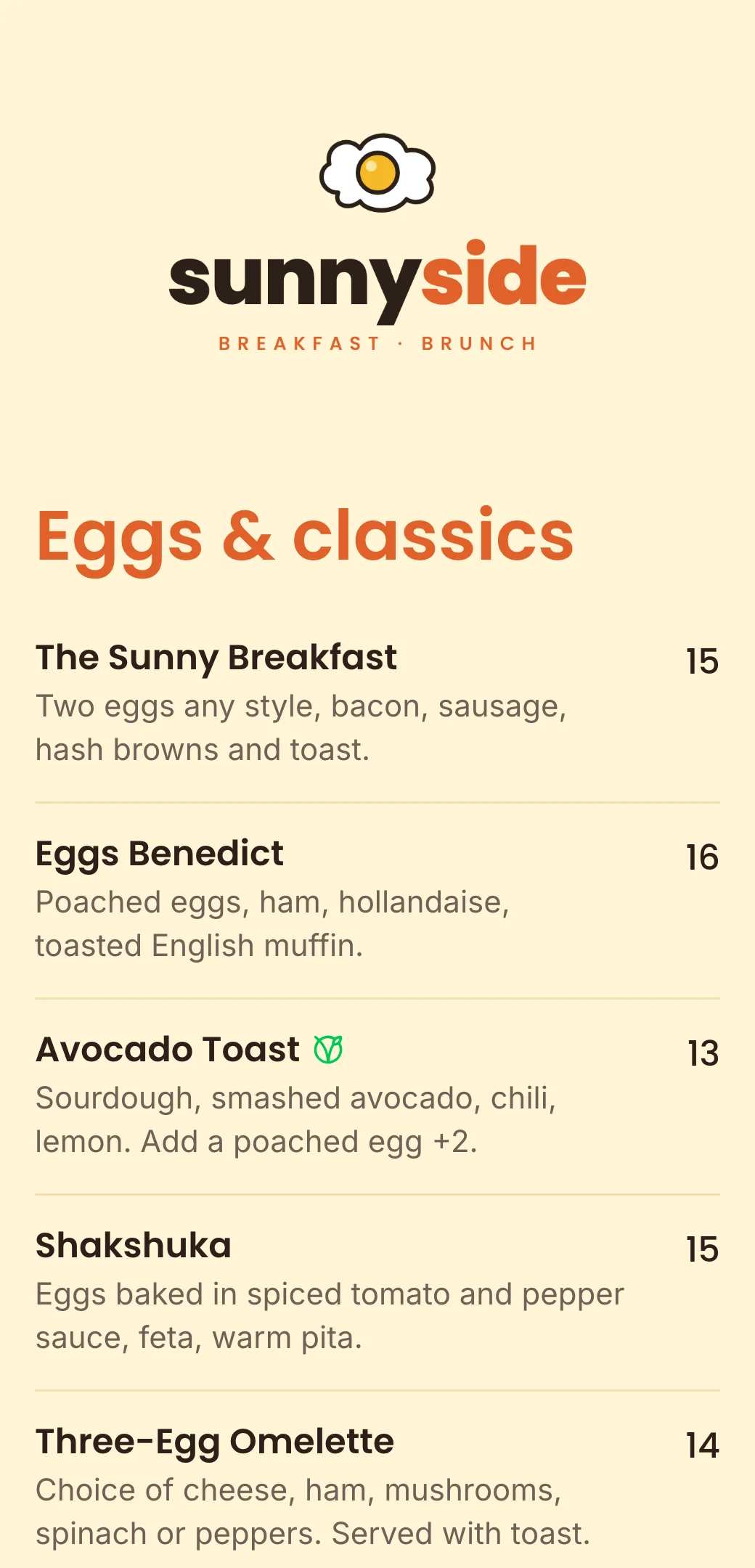
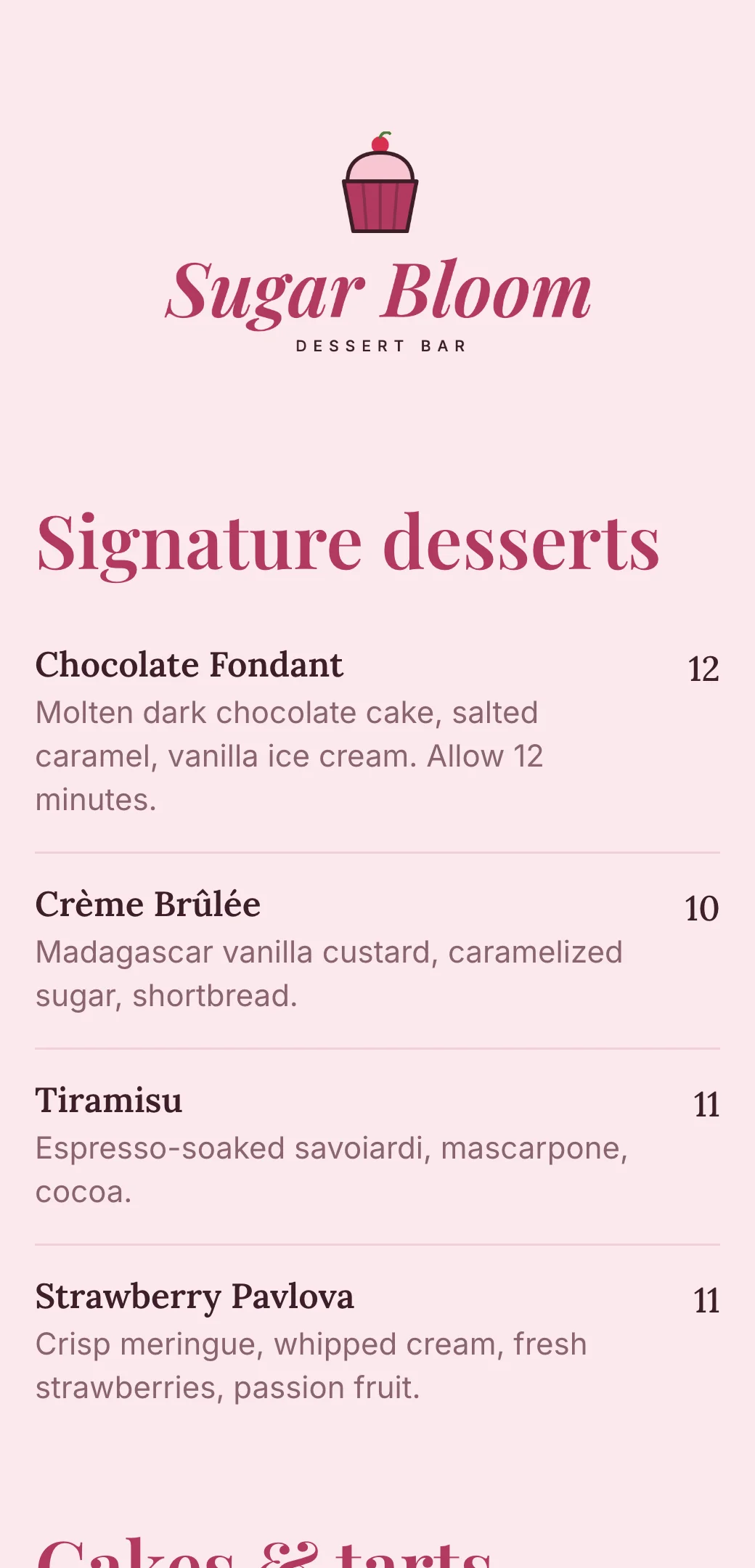
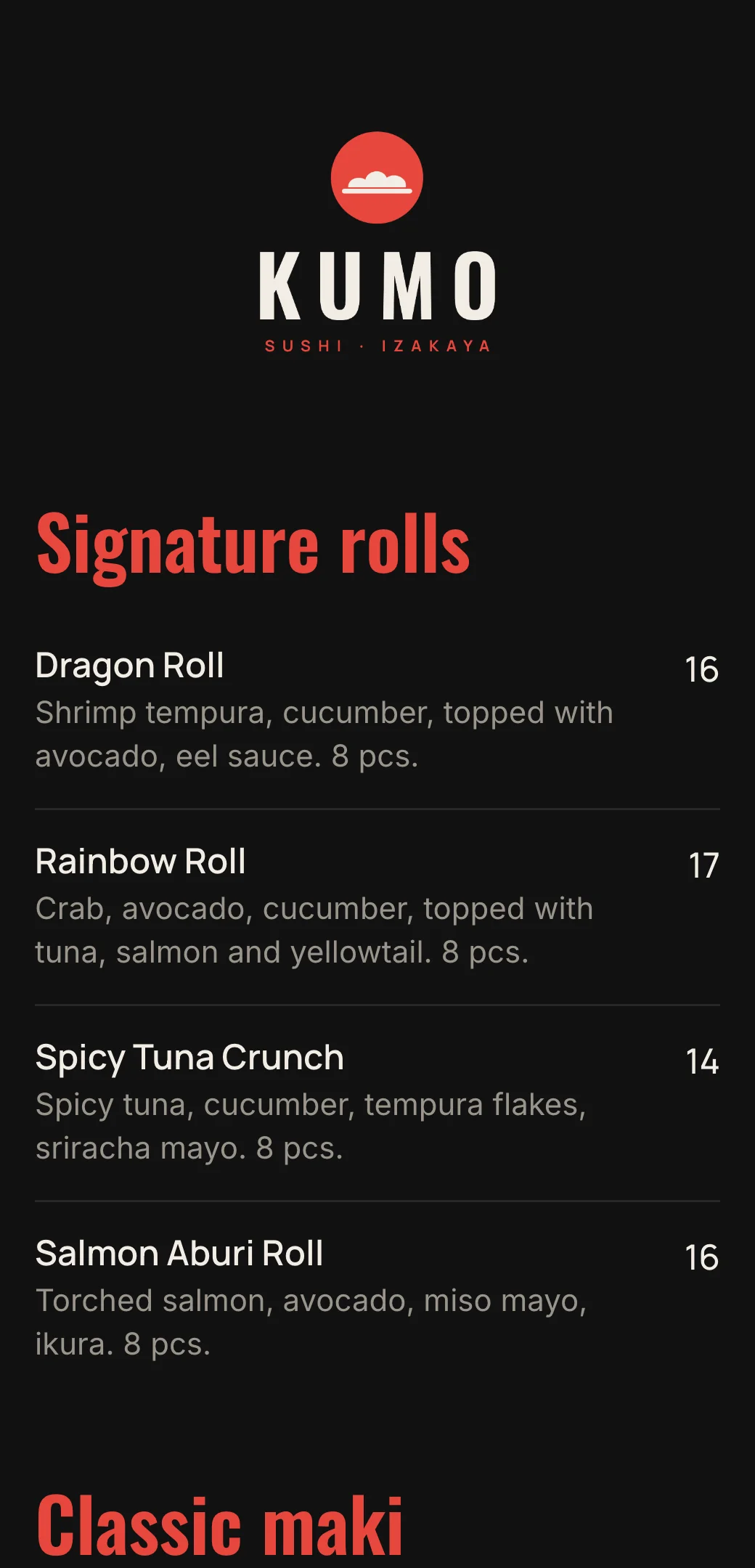
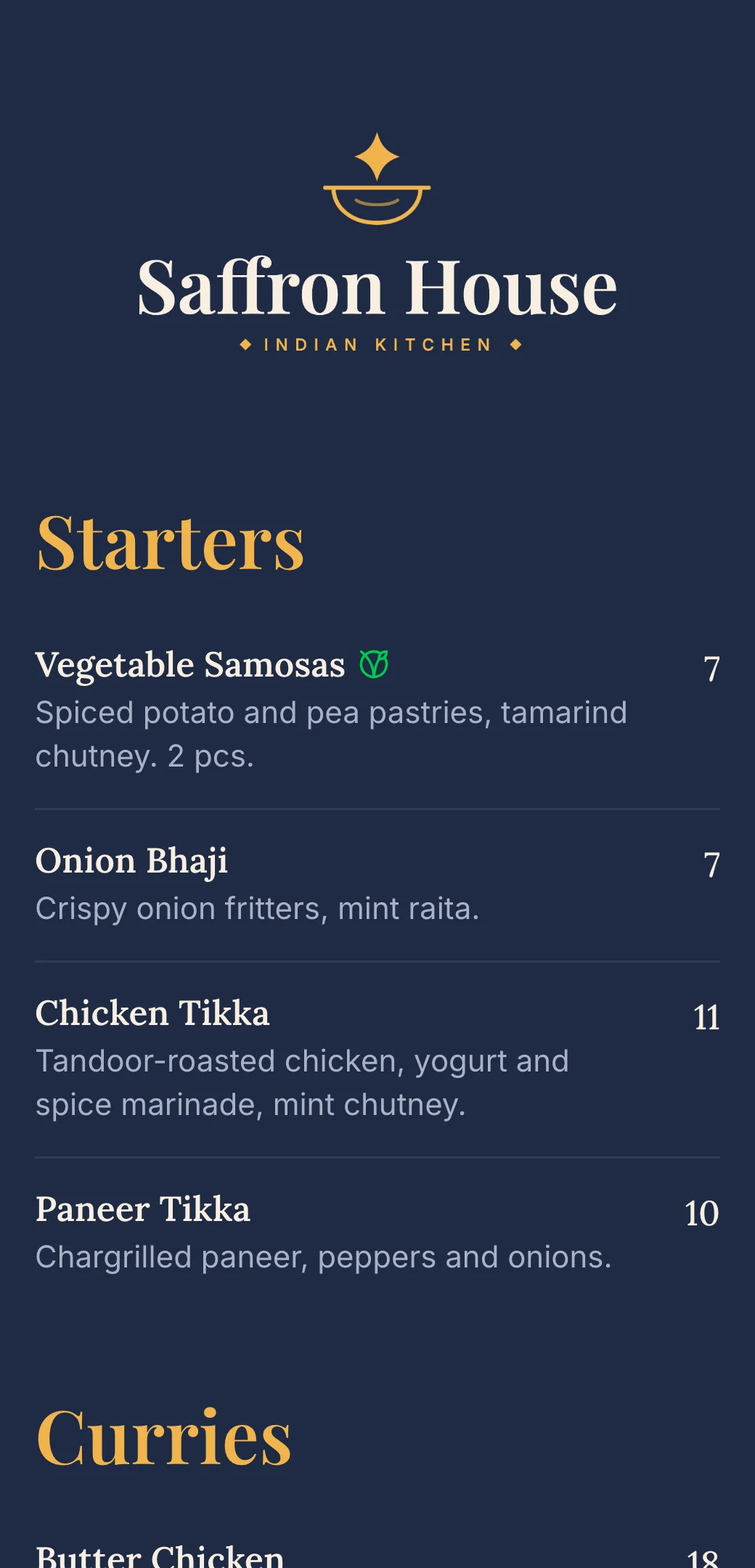
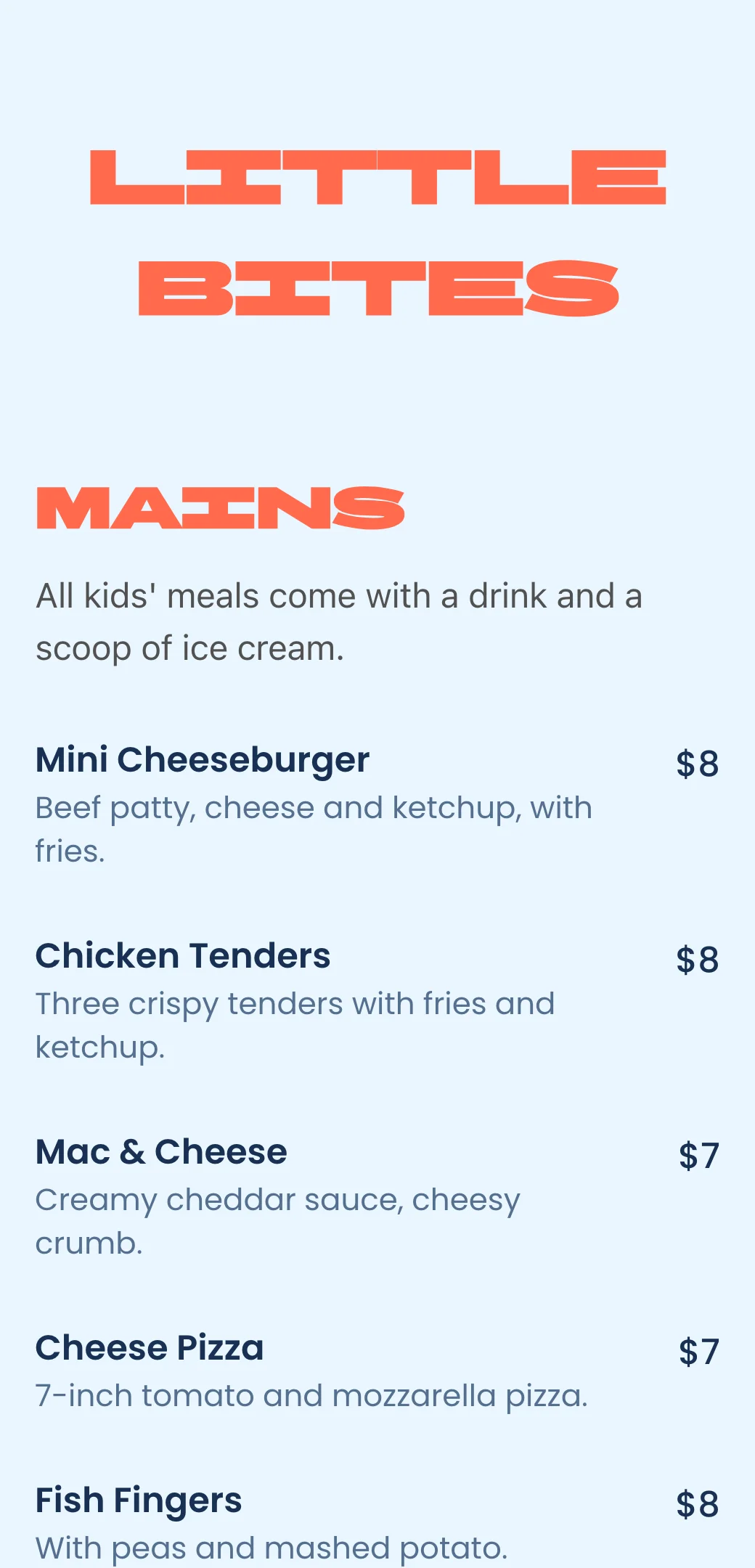
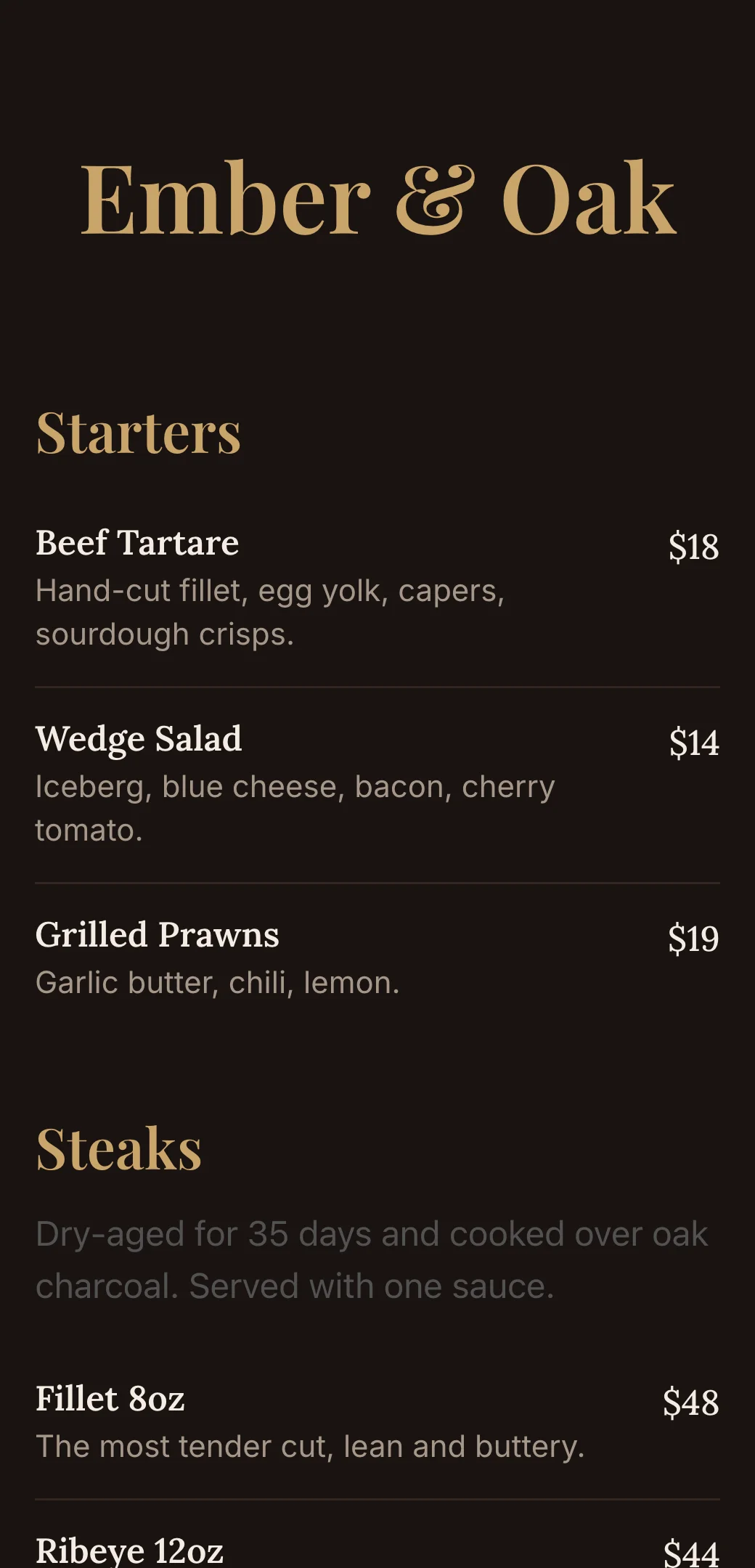
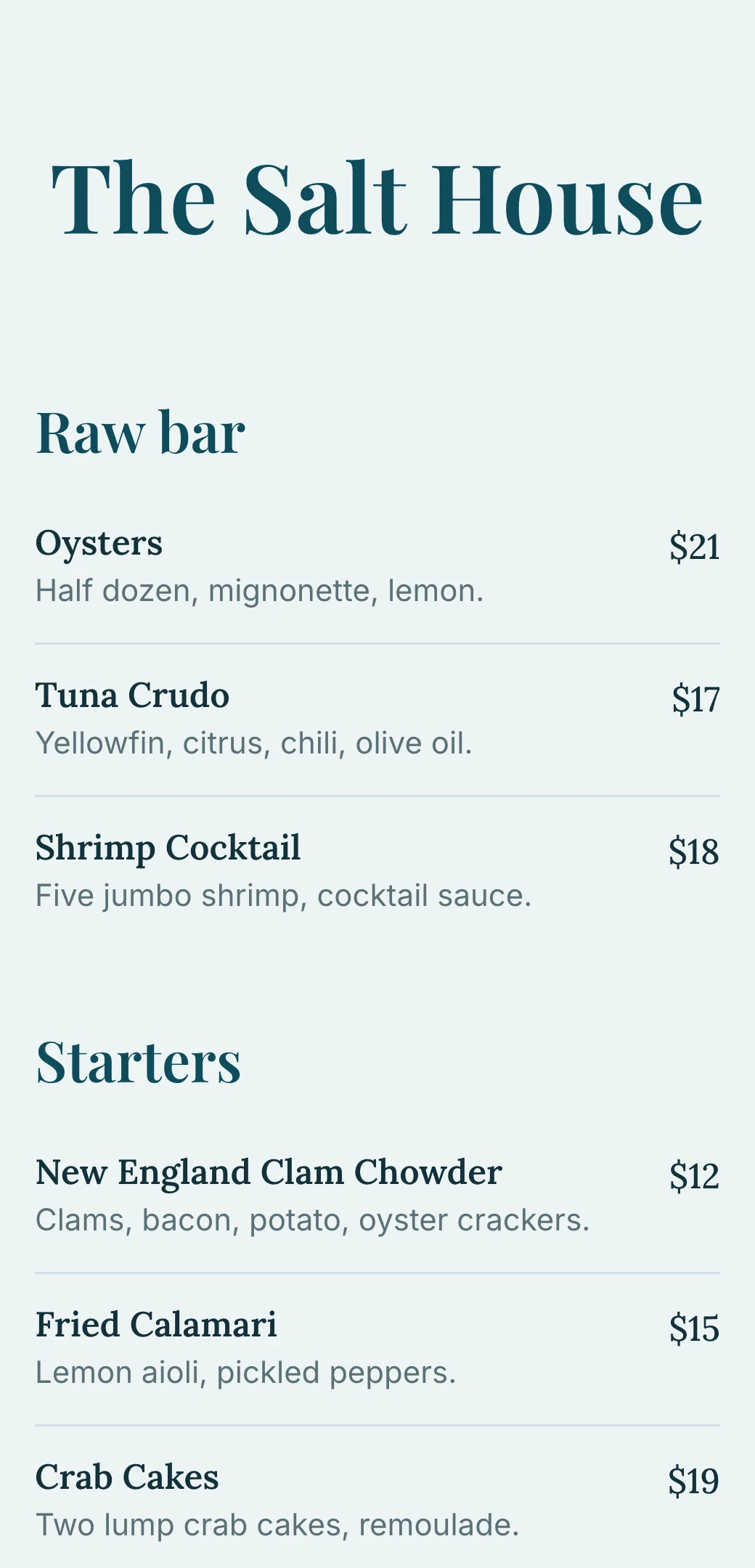
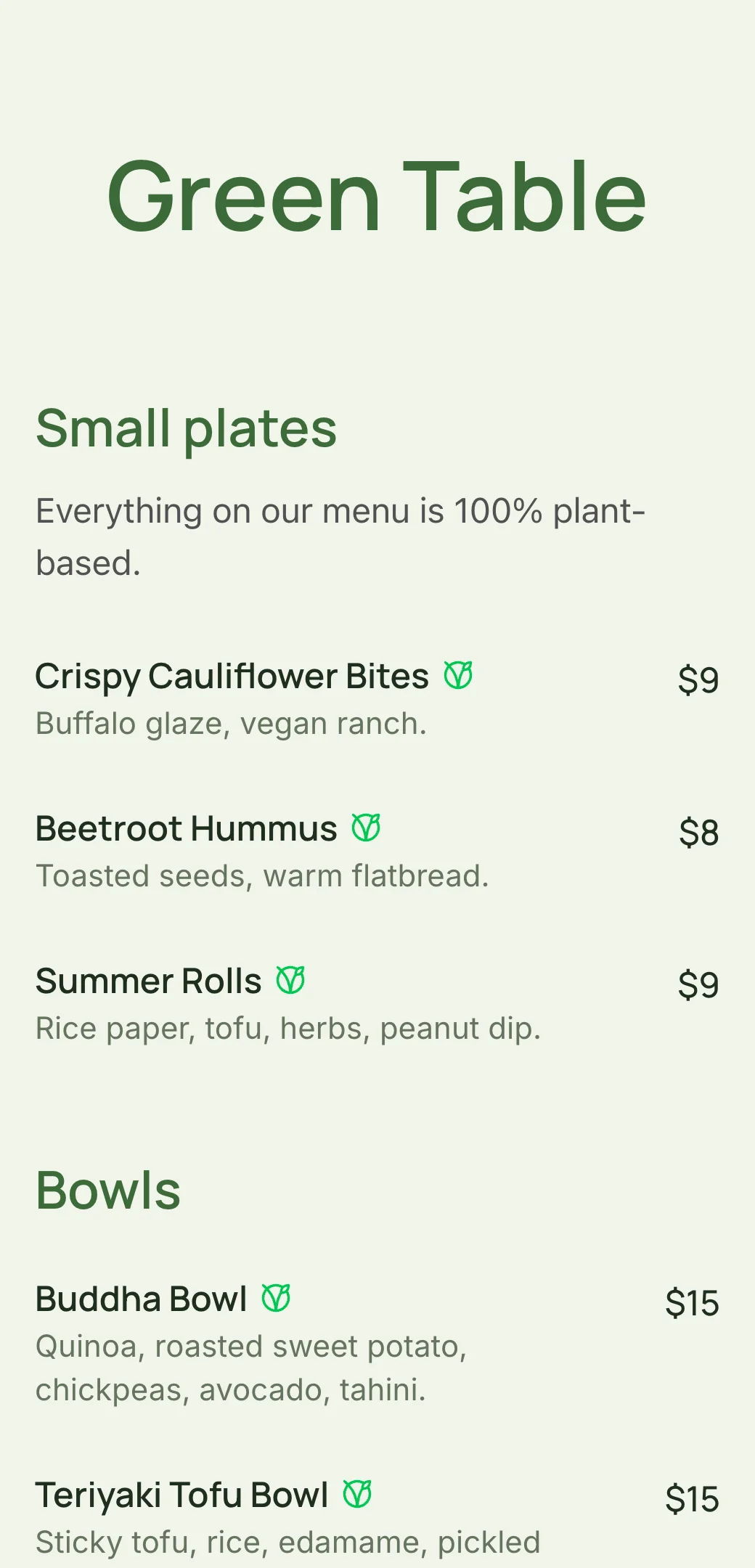
Explore professionally designed digital menu templates for restaurants. Create menus online, customize branding, and share your menu with a link or QR code.
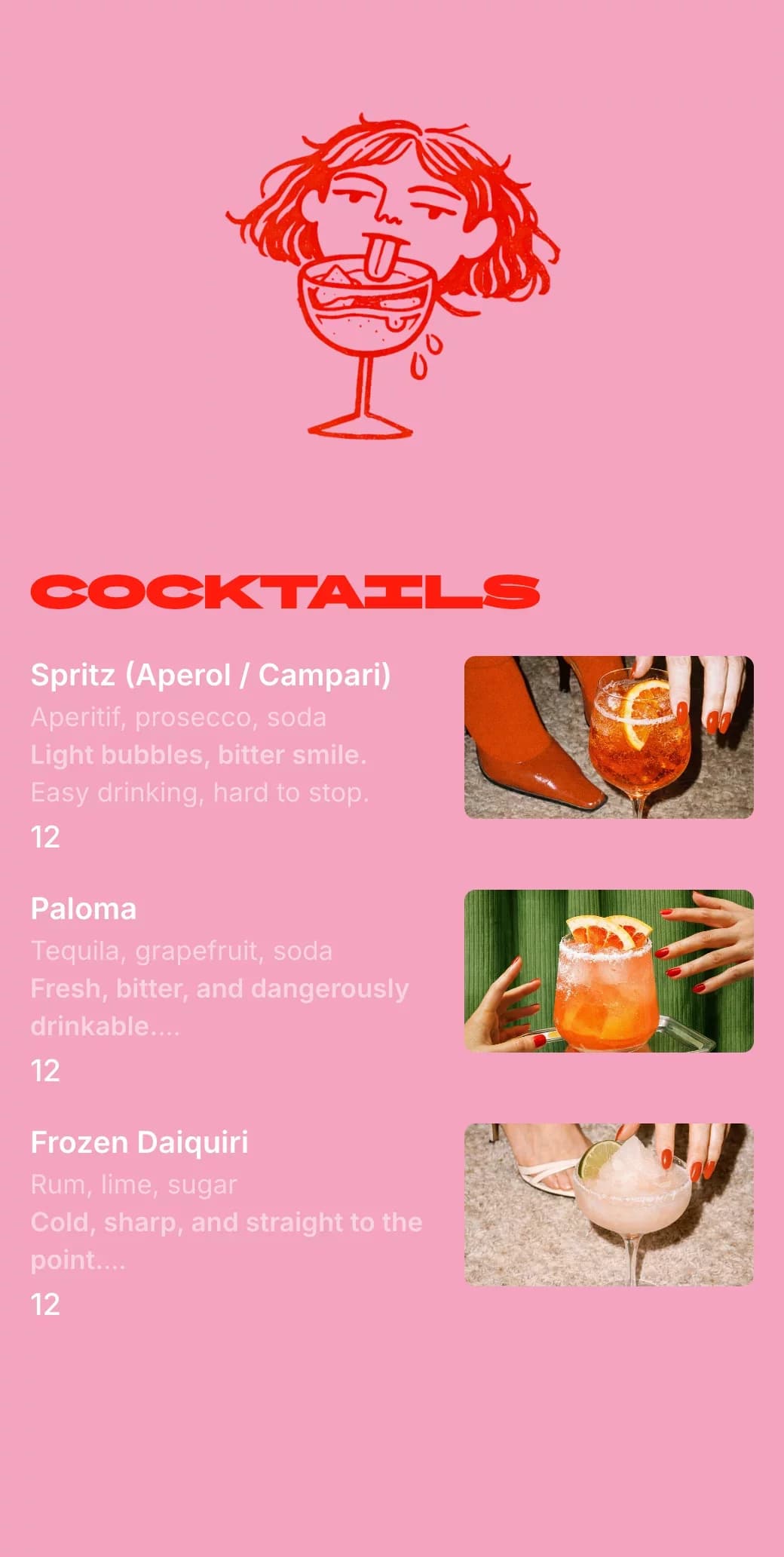
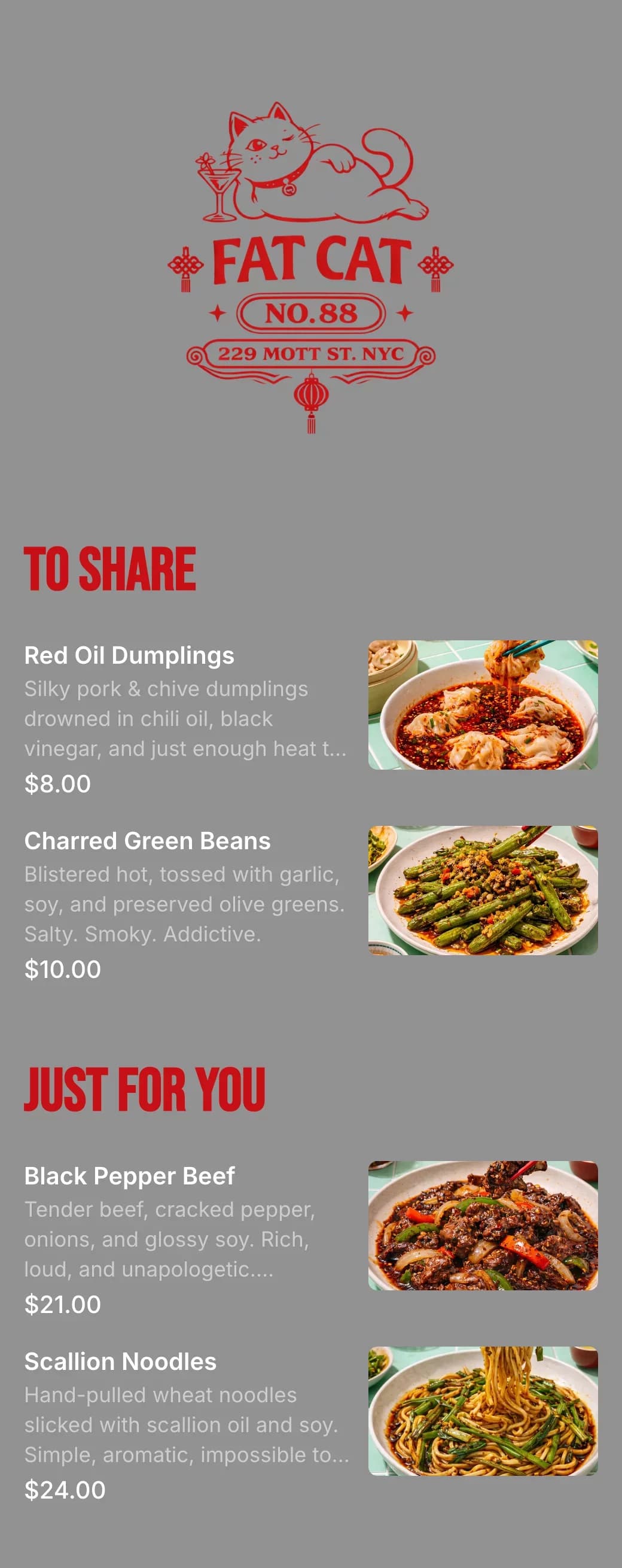
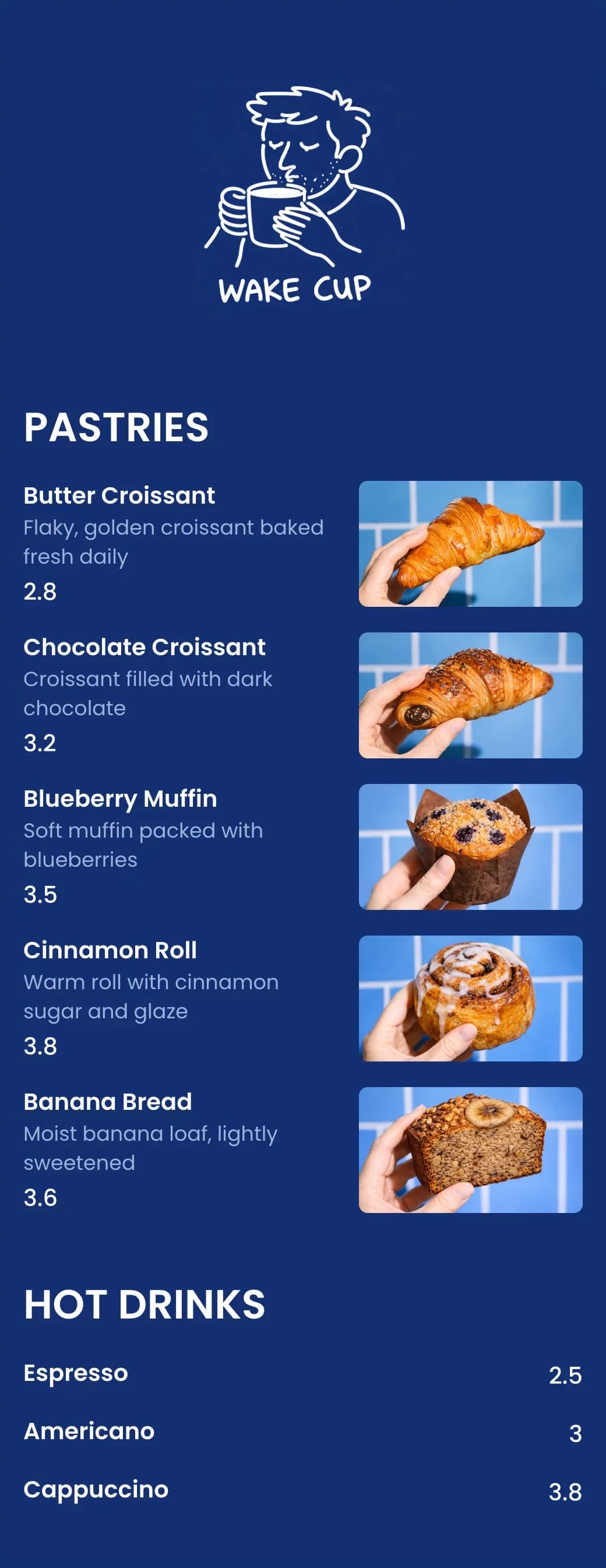
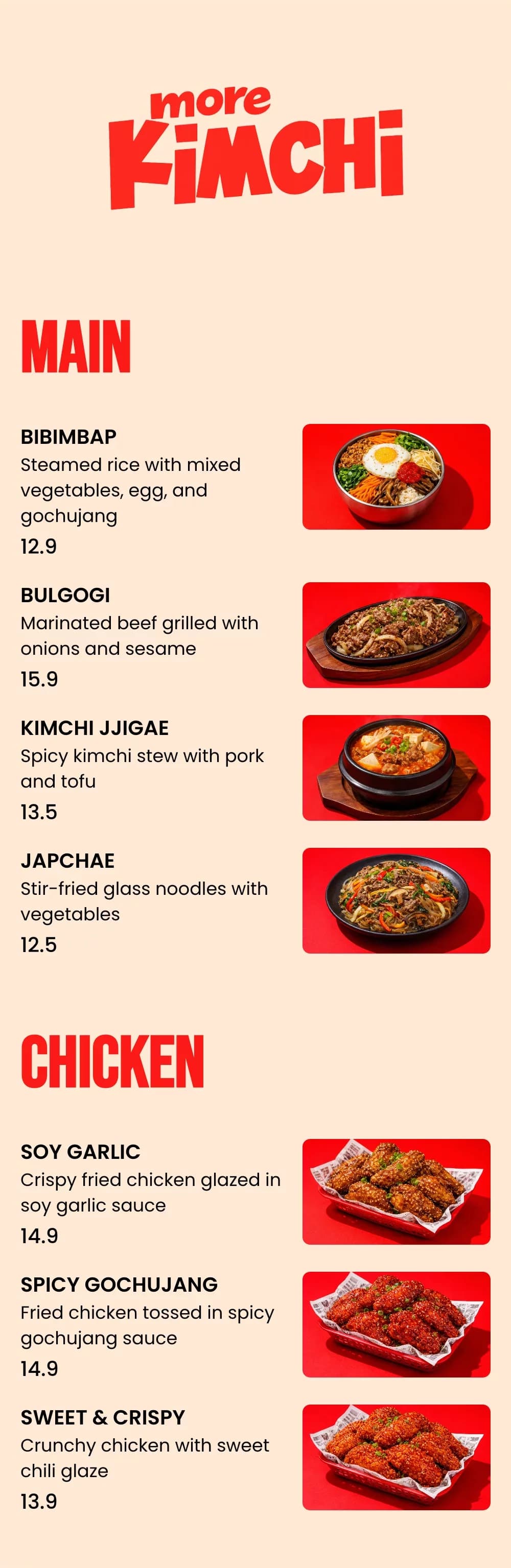
Bubble tea menu maker questions and answers
- How should I organize a bubble tea menu?
- Split drinks into milk teas, fruit teas and slushies, then list toppings in their own category with their prices. Customers can then build their drink step by step.
- How do I show sweetness and ice levels?
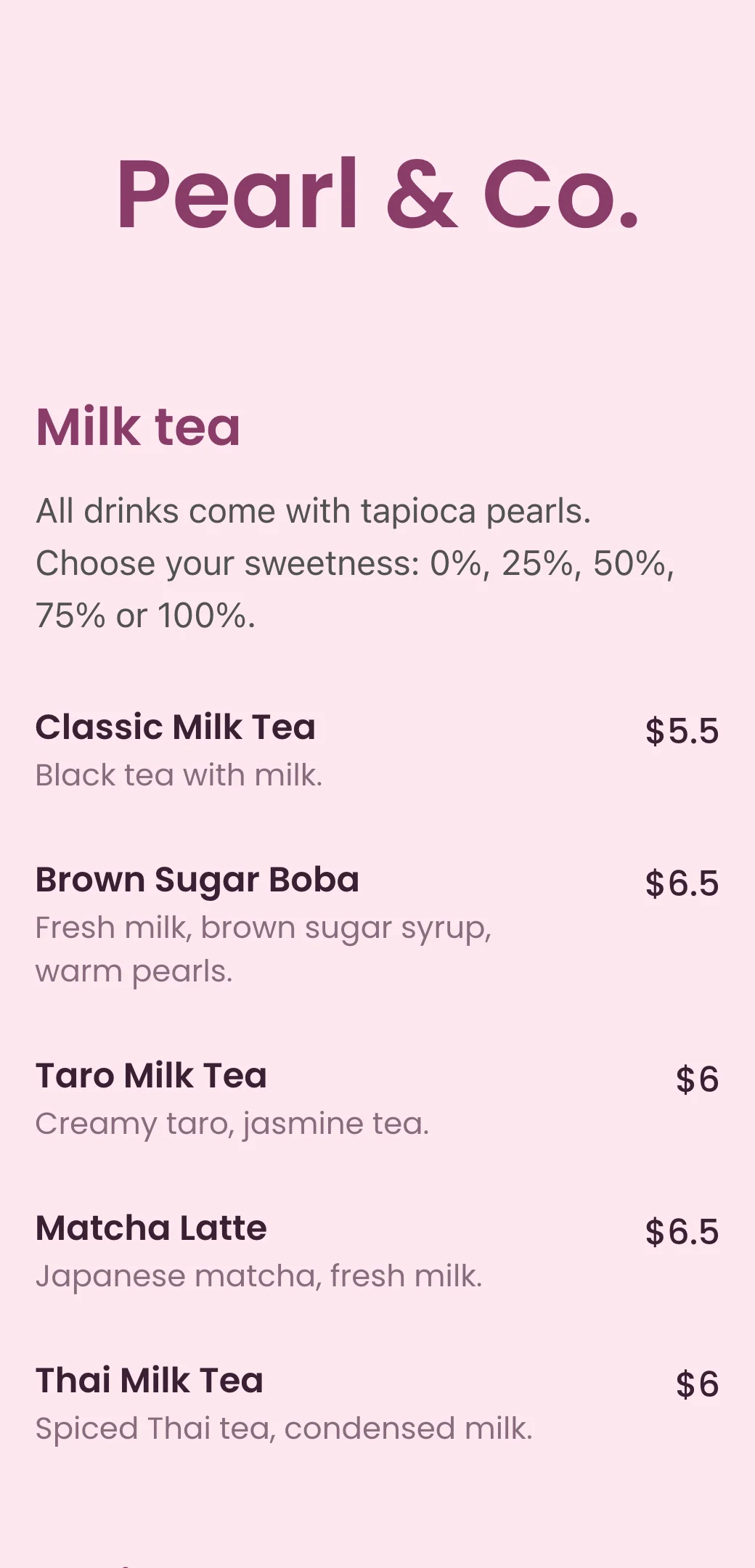
- Add them to a category description, for example “Choose your sweetness: 0%, 25%, 50%, 75% or 100%”, so customers know to ask when they order.
- How do I list toppings that cost extra?
- Create a Toppings category with each topping and its price, such as tapioca pearls, popping boba, jelly and cheese foam.
- Can I match the menu to my boba shop’s colors?
- Yes. Upload your logo and choose background colors, text colors and fonts that match your shop and cups.
- How do I add seasonal drinks?
- Add a Seasonal category or new drinks at the top of the menu and publish. Remove them when the season ends — the QR code at your counter stays the same.